


I’ve been messing around with AI tools for close to two years now, testing everything from cloud upscalers to background removers that eat your monthly credits in a weekend. If you’re after a free local AI background remover that skips the upload-every-time routine, that’s basically what pulled me toward Creative Fabrica Studio Desktop, and I figured it was worth a real install-and-test on my Windows 11 machine instead of just reading the marketing page.
Direct Answer: Creative Fabrica Studio Desktop is a free Windows and Mac app that runs supported AI tools, like background removal, image upscaling, and many more locally on your own computer instead of pushing every file to the cloud. No paid account or credit card is needed to install it, and after the model downloads, those local tools work without uploading your images anywhere.
The Problem With Most Background Removers and Upscalers
If you sell on Etsy, run a print-on-demand shop, or just make a lot of design assets, you’ve probably hit the same wall I have. Background removal tools often require uploads, subscriptions, or a credit balance that drains faster than you’d like. Etsy and POD sellers usually need to clean up dozens of product images in one sitting, not just one or two, and cloud tools rarely make that cheap or fast.
Cricut users chasing a clean transparent PNG deal with the same headache, and it’s worth trying the app yourself at desktop.creativefabrica.com before you pay for another cloud credit pack.
What Is Creative Fabrica Studio Desktop Right Now?
Creative Fabrica Studio Desktop is a desktop companion app that connects to Creative Fabrica Studio and lets supported tools run using processing power on your own PC. I want to be careful here because I only tested what I actually tested. After the model installed on my machine, the background remover and upscaler I used ran locally without a fresh upload for every image. Some workflows may still lean on an internet connection or your Creative Fabrica account.
It’s free to download for Windows and Mac, and you don’t need to enter payment details just to poke around.
Why Local AI Actually Matters Here
I’m not going to pretend cloud tools are useless, I use plenty of them. But local processing solves a few specific annoyances that show up constantly in creative workflows:
- You’re not uploading every single product photo to a third-party server
- No credit meter ticking down while you batch through 40 Etsy photos
- Faster workflow if your internet connection is slow or your cloud subscription is getting expensive
- More appealing if you’re privacy-conscious about where your design files end up
- It’s built right into the Studio workflow, so you’re not tabbing between five different apps just to clean up one image
Installing It on Windows 11: My Actual Steps
I went to desktop.creativefabrica.com, downloaded the Windows installer, and ran it. It is a normal and simple windows installation process and the install finished in under a minute. No account required, no card details requested anywhere in the flow.

Once installed, the app opened and connected to Studio. The first time I picked a local tool, like the background remover, it downloaded the underlying model before running. That’s a one-time thing per tool, and after that it just ran without asking again.
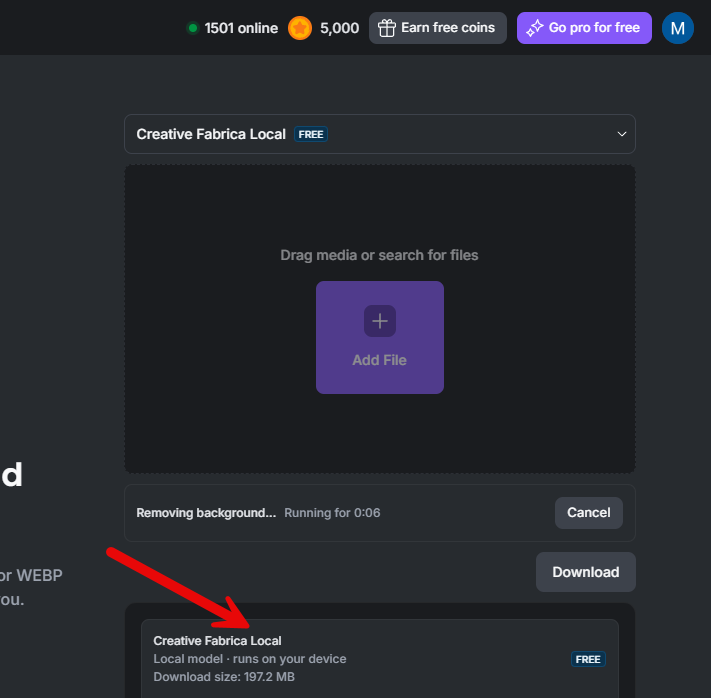
Hands-On Workflow: Cleaning Up an Etsy Product Photo
I grabbed a low-res product shot I’d normally send to a cloud remover and ran it through the desktop app’s background remover instead. This is the kind of task Etsy and POD sellers deal with constantly, cleaning up a product photo before it goes live on a listing.

The tool stripped the background out in a few seconds, and I didn’t have to wait on an upload bar or watch a credit count drop. I then ran the same file through the upscaler to bump up the resolution enough for a cleaner print, which is exactly the kind of step sublimation and POD sellers deal with when their source design is smaller than the printer wants for a good result.
If you’re prepping files for Cricut, this same workflow gets you a transparent PNG without a browser tab open the whole time. It’s the kind of background remover for Cricut and general design cleanup that saves you from juggling upload limits on a browser-based tool.
Who Should Actually Use This
- Etsy sellers cleaning up product photos in bulk
- Print-on-demand and sublimation creators prepping designs for print
- Cricut users who need transparent PNGs without uploading files
- KDP creators and digital product sellers who process a lot of cover art or assets
- Small design shops, freelancers, and crafters wanting more control over their file handling
- Anyone testing AI tools who’s tired of credit systems eating into a workflow
Pros and Limitations
I’d rather be straight with you than oversell this.
Pros:
- Genuinely free, no card needed to install or test
- Works on both Windows and Mac
- Useful for background removal and image upscaling once the local model is running
- Fits directly into the Creative Fabrica Studio workflow instead of being a separate silo
- Handy for anyone processing a stack of images instead of just one
Limitations:
- Performance depends on your computer’s specs, an older machine will feel it more than a newer one
- First use of a tool requires a model download, so you need internet at least once before it runs locally
- Not every feature in Studio necessarily runs offline, some steps may still need a connection or an account depending on the workflow
- I only tested background removal and upscaling on Windows 11 myself, so I can’t speak firsthand for the full tool lineup or the Mac experience
Balanced reporting matters more to me than pure promotion, so take these limitations seriously before you build a whole workflow around it.
Where This Fits for Etsy, POD, and Cricut Creators
If you’re an Etsy seller who has been paying per image on a cloud-based background remover, or a POD seller manually upscaling sublimation designs one at a time, this app is worth setting up just to see what it saves you. I’d call it one of the more useful free desktop AI tools for creators I’ve tried in the past year, mainly because it doesn’t try to nickel-and-dime you for basic tasks like removing a background or bumping up resolution. You can grab it directly from the Creative Fabrica Studio Desktop tools page and see for yourself whether it fits your workflow before committing to anything paid.
FAQ
Is Creative Fabrica Studio Desktop free?
Yes, the app itself is free to download and install, with no credit card required to test it.
Does the background remover run locally?
On my Windows 11 setup, after the model downloaded, the background remover ran on my own machine rather than uploading each photo.
Does it work on Windows and Mac?
Yes, it’s available for both, though I only tested the Windows 11 install myself.
Can I use it for Etsy product photos or print-on-demand designs?
Yes, that’s exactly the workflow I tested, cleaning up a product shot and upscaling it for print.
Can I make transparent PNG files for Cricut?
Based on my test with the background remover, yes, you can export a transparent PNG for Cricut projects using the same local workflow.
Do I need an internet connection every time?
Not for the tools I tested once the model was downloaded, but some Studio features may still need a connection depending on what you’re doing.
Is this a real alternative to cloud background removers?
For the specific tools I tried, it held up well as a free option without the upload-and-credit routine, though I’d test it on your own hardware before fully switching over.
