


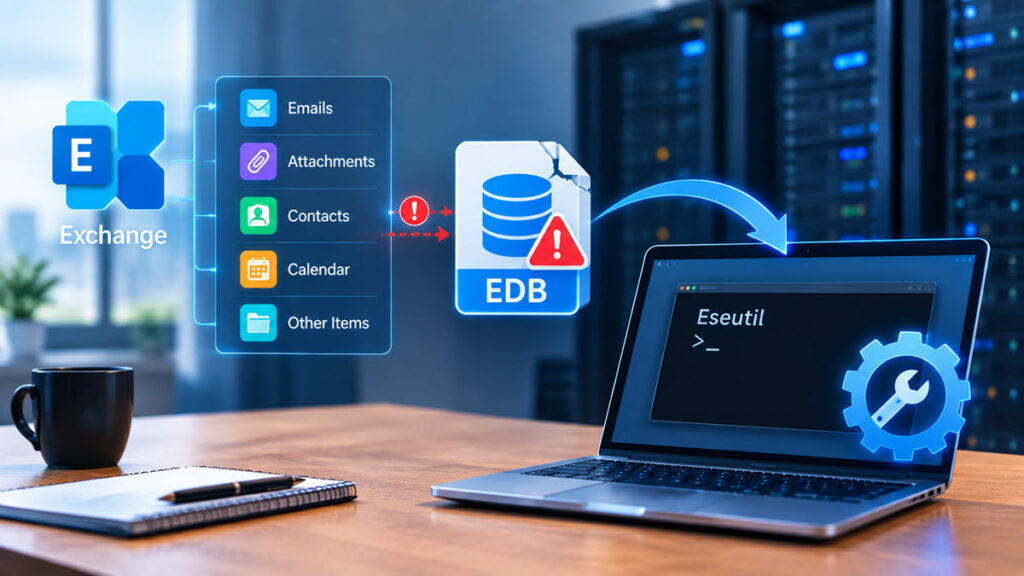
The EDB file contains crucial data related to the mailbox, such as emails, attachments, contacts, calendar, and other mailbox items. However, if the EDB file becomes corrupt or the Exchange database does not mount, then you can lose crucial mailbox data.
The Exchange Server also has in-built utilities, such as Eseutil, which can be used to verify the integrity of the database and perform certain recovery tasks. Nevertheless, Eseutil is a command-line tool and cannot do everything in each case of EDB corruption.
If you prefer an easier way of recovering mailbox data, there is also an online Exchange EDB repair service that you may use. For bigger databases, there is also a desktop application for repairing the EDB file.
This guide explains all three approaches and helps you choose the right method based on your EDB file size and recovery requirements.
What Causes Exchange EDB File Corruption?
An Exchange database can become inaccessible or inconsistent for several reasons, including:
- Unexpected Exchange Server shutdown
- Power failure
- Hardware or disk problems
- Missing or damaged transaction logs
- Exchange Server crashes
- File-system errors
- Database consistency issues
- Improper server shutdown
- Storage-related problems
In order to restore the EDB file, it is advised that the initial database along with the related transaction logs be backed up first.
Method 1: Repair and Recover an EDB File Using Eseutil
Eseutil is the command line tool which comes with Microsoft Exchange Server. The Exchange administrators use this utility for maintenance, checking, recovery, and management of databases.
This is one of the first things that Exchange administrators do when faced with an issue of Exchange database which does not mount.
Step 1: Check the EDB Database State
Before performing any repair, check whether the database is in a Clean Shutdown or Dirty Shutdown state.
Run:
Eseutil /mh “C:\Exchange\Database\DB01.edb”
Replace the path with the actual location of your EDB file.
The output may show:
State: Clean Shutdown
or:
State: Dirty Shutdown
A Dirty Shutdown does not necessarily mean that the database is permanently corrupt. It can indicate that transaction logs need to be replayed.
Step 2: Try Soft Recovery with Eseutil /R
If the database is in a dirty shutdown state and the required transaction logs are available, you can try soft recovery.
For example:
Eseutil /R E01
The E01 value represents the transaction-log prefix and may be different in your Exchange environment.
After recovery, check the database state again:
Eseutil /mh “C:\Exchange\Database\DB01.edb”
If the database reaches a clean shutdown state, you may be able to mount it in Exchange Server.
What If Eseutil Cannot Recover the EDB?
Eseutil is useful for checking and recovering certain Exchange database issues, but it is not a universal EDB repair solution.
You may still have problems when:
- Required transaction logs are missing.
- Transaction logs are damaged.
- The EDB has severe corruption.
- The database cannot be mounted after recovery.
- You need to extract mailbox data from an inaccessible database.
- You want to recover data without performing complex Exchange Server procedures.
In such situations, repeatedly running repair commands may not be the best approach.
This is where an Exchange database repair service or dedicated software can be considered.
Method 2: Repair a Corrupt Exchange Database File Online
If you want to avoid complex command-line recovery procedures, an online Exchange database repair service provides a simpler alternative for supported EDB files.
This way, you do not need to install any software, set up an Exchange recovery environment, but simply upload your EDB file and scan it for mailbox recovery.
How Online EDB Repair Works
The process is straightforward:
Upload EDB → Analyze → Preview → Recover
1. Upload the EDB File
Upload your Exchange EDB file to the online repair service.
The online option is particularly convenient when you are dealing with a smaller database and want to quickly determine whether mailbox data can be recovered.
2. Analyze the Database
The service analyzes the EDB file and identifies recoverable mailbox items.
Depending on the condition of the database, this may include:
- Emails
- Attachments
- Contacts
- Calendars
- Tasks
- Notes
- Other mailbox items
3. Preview mailboxes folders structure and item counts
After scanning, preview the recovered mailbox data to verify that the required information is available.
4. Recover the Mailbox Data
Once you have verified the results, proceed with the available recovery/export option.
Free Online EDB Repair for Files up to 500 MB
If your EDB file is 500 MB or smaller, you can start with the free online Exchange EDB repair service.
This is useful when you want to:
- Check whether your EDB data is recoverable
- Preview mailboxes folders structure and item counts
- Avoid installing desktop software
- Quickly evaluate a small corrupt EDB file
Have an EDB file up to 500 MB? Start with the free online EDB repair option.
Premium Online EDB Repair for Files up to 5 GB
For larger EDB files, the Premium online service supports EDB files up to 5 GB.
This provides a convenient option for users who have an EDB file larger than the free service limit but still want to use an online recovery process.
Which Online Option Should You Choose?
| EDB File Size | Recommended Option |
| Up to 500 MB | Free Online EDB Repair |
| More than 500 MB and up to 5 GB | Premium Online EDB Repair |
| More than 5 GB | Desktop Edition |
This size-based approach makes it easy to choose the appropriate recovery option.
Security should also be considered when choosing an online recovery option. The online service should use an encrypted connection and automated processing, while uploaded data should be removed according to the service’s stated retention policy. With the Free service, uploaded data is deleted after 24 hours, while Premium data is deleted after 48 hours. For organizations that prefer local processing, the Desktop Edition allows the EDB file to be processed without uploading it to an online service.
This provides Exchange administrators with a practical recovery path from native Eseutil troubleshooting to secure online EDB repair and, when required, local desktop processing for larger databases.
Method 3: Repair Large EDB Files Using the Desktop Edition
What if your Exchange EDB file is larger than 5 GB?
In that case, the Desktop Edition is the recommended option.
Instead of uploading a large database to an online service, the desktop application allows you to process the EDB file locally on your Windows computer.
A desktop-based solution can be more suitable for:
- Large Exchange EDB files
- Enterprise databases
- Multiple EDB files
- Large mailbox recovery projects
- Situations where uploading database data is not preferred
- Administrators who need additional recovery and export options
For large databases, processing the EDB locally can also be more practical than uploading a multi-gigabyte database.
Eseutil vs. Online EDB Repair vs. Desktop Edition
Choosing the right approach depends on the condition and size of your EDB file.
| Feature | Eseutil | Online EDB Repair | Desktop Edition |
| Cost | Included with Exchange | Free/Premium options | Licensed software |
| Interface | Command line | Web-based | Desktop application |
| Best suited for | Exchange administrators | Small/medium EDBs | Large EDBs |
| Database size | Depends on environment | Up to 5 GB | Larger databases |
| EDB preview | No | Mailbox folder structure and item count | Yes |
| Technical expertise | Higher | Low | Low to moderate |
| Requires Exchange Server environment | Yes/Exchange tools | No | No |
| Best use case | Database checks and soft recovery | Convenient online recovery | Large/local EDB recovery |
Which EDB Repair Method Should You Use?
There is no single recovery method that is appropriate for every Exchange database.
Use Eseutil when:
- You have access to the Exchange Server environment.
- You are comfortable with command-line tools.
- You need to check the database state.
- The database is in a dirty shutdown state.
- Required transaction logs are available.
Use Online EDB Repair when:
- You want a simpler recovery process.
- You do not want to configure an Exchange recovery environment.
- Your EDB is up to 5 GB.
- You want to preview recoverable mailbox folders structure and item counts
- Your EDB is up to 500 MB and you want to start with the free option.
Use the Desktop Edition when:
- Your EDB is larger than 5 GB.
- You need to process a large database locally.
- You have multiple or large EDB files.
- You prefer not to upload the database.
- You need a more comprehensive desktop-based recovery workflow.
Why Start with Eseutil and Then Consider Online EDB Repair?
Eseutil is a useful first step because it can tell you what is happening with your Exchange database.
For example, checking the database with:
Eseutil /mh “C:\Database\DB01.edb”
can help determine whether it is in a clean or dirty shutdown state.
If soft recovery using Eseutil resolves the issue, you may not need an additional recovery solution.
However, if the database remains inaccessible or you need a simpler way to extract mailbox data, an online EDB repair service can be a practical next step.
For smaller databases, you can start with the free online option for up to 500 MB. If the EDB is larger but within the online limit, choose the Premium service for up to 5 GB.
For databases exceeding 5 GB, move to the Stellar Repair for Exchange Desktop Edition for local processing.
Conclusion
When an Exchange EDB file becomes inaccessible or shows signs of corruption, Eseutil is a good place to start. Use the /mh switch to check the database state and, when appropriate, perform soft recovery using /r along with the required transaction logs. If native Exchange recovery does not resolve the issue, you don’t necessarily need to continue with complex database repair procedures. For supported EDB files, you can move to an online Exchange EDB repair service based on the database size: use the Free Online EDB Repair service for files up to 500 MB, the Premium Online EDB Repair service for files from 500 MB to 5 GB, and the Desktop Edition for larger EDB files that require local processing. This provides Exchange administrators with a practical path from native Eseutil troubleshooting to online EDB repair and, when needed, desktop processing for larger databases.
