


A scan-to-email workflow can quietly consume far more mail server capacity than its users realize. Each document may appear small on the scanner’s display, yet high-resolution images, inefficient compression, and email encoding can turn a routine PDF into a large message that must pass through several systems.
For organizations using Exchange or Microsoft 365, those messages affect queues, mailbox quotas, backups, and network traffic. Replacing email-based transfers with direct cloud storage can reduce that load while giving employees a simpler way to organize and share scanned files.

The Hidden Tax of Massive Attachments
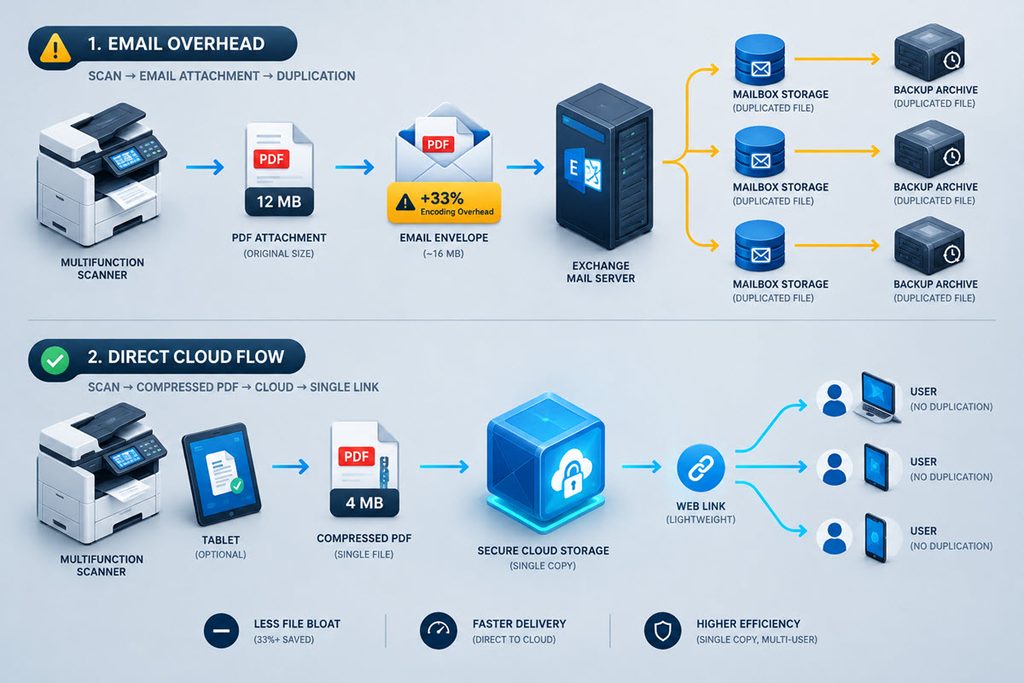
Email attachments use more resources than their listed file size suggests. Most mail systems convert binary files such as PDFs into text-safe formats for transmission. This encoding can increase the message size by roughly one-third before transport headers, security checks, and journaling copies enter the calculation.
Consider an office that scans 100 documents per day, with each PDF averaging 12 MB. The files alone account for 1.2 GB. After encoding, the mail platform may process closer to 1.6 GB, and multiple copies can exist in the sender’s mailbox, recipient mailboxes, archive systems, and backups. Over a month, a modest scanning routine can create tens of gigabytes of avoidable storage.
Large attachments can also affect delivery speed. Guidance on attachment deliverability explains how file size, filtering, and recipient limits influence message handling. Internal mail isn’t exempt from these issues because security tools may still inspect every attachment.
Organizations should review message-tracking logs and identify devices that regularly submit large files. If scan messages cluster during busy hours, schedule changes alone won’t solve the underlying problem. Set practical size limits, lower unnecessary scan resolution, and move large documents to a file-sharing service where email carries only a link.
Why Office Scanners Create Bloat
Office scanners often prioritize print quality over efficient digital storage. A device may default to full color and 600 dots per inch even when an employee is scanning a black-and-white invoice. Those settings capture far more image data than the document needs.
A one-page text document scanned as a high-resolution color image can take several megabytes. The same page scanned in grayscale at 200 or 300 dpi, with effective compression and optical character recognition, may require only a fraction of that space. The explanation of large scanned files shows why an apparently simple page can produce an unexpectedly heavy attachment.
Review each shared scanner’s default profile and create separate presets for common jobs:
- Use 200 or 300 dpi for standard office documents
- Select grayscale for forms with signatures or stamps
- Reserve full color for pages where color carries useful information
- Enable searchable PDF creation when supported
- Apply automatic blank-page removal and cropping
Compression needs testing because aggressive settings can make small text hard to read. Scan a typical contract, receipt, and multi-page form, then compare legibility and file size. A clear 1.5 MB document is more useful than a 15 MB file that looks nearly identical on screen. Standardized presets also reduce the chance that each department develops its own oversized scanning habits.
Direct Cloud Ingestion from Handhelds
Sending scans directly to approved cloud storage removes the mail server from the file-transfer path. For iPhone and iPad users, a mobile document scanner can capture documents, receipts, IDs, and photos, then export them as PDF or image files. Employees can place the resulting file in an authorized cloud folder and share access through the organization’s normal collaboration platform.
This approach works well for staff who handle documents away from a central office. A field employee can scan a signed service form at the customer’s location, check the crop and readability, and upload it to the correct project folder. No large attachment needs to sit in an outbox or wait for the corporate scanner to connect.
Administrators still need controls around the process. Define which storage services employees may use, require managed accounts, and apply retention rules to shared folders. Mobile device management can help enforce screen locks, app policies, and remote removal of business data. Users should also delete temporary local copies once the approved repository confirms the upload.
Cloud ingestion improves naming and routing when teams use a consistent pattern. A filename such as `2026-10-29_Client_Project_DocumentType.pdf` is easier to locate than `SCAN00482.pdf`. Folder templates and required metadata can make retrieval even faster while reducing duplicate files.
Reduce Exchange Mailbox Overhead
Exchange processes every scan-to-email message through transport services, policy checks, and delivery rules. If a multifunction device submits several large jobs at once, the queue can grow while antivirus scanning and attachment inspection consume resources. Microsoft’s discussion of scan-to-email delays illustrates how internal scanner messages can behave differently from mail sent to outside recipients.
Start troubleshooting with message tracking and queue inspection. Record the submitting device, attachment size, timestamp, and destination. This data helps separate a scanner configuration issue from connector throttling, DNS trouble, or a security gateway delay. If messages are already waiting in a hybrid environment, the steps for diagnosing email stuck in the outbound queue provide a useful reference for checking connectors and transport flow.
Reducing mailbox overhead also requires attention to copies. A scan sent to five employees may create five mailbox items, plus the sender’s copy and any archive versions. Uploading one file to a controlled repository and sending a short access link avoids much of that duplication.
Set a threshold for the new workflow. For example, permit direct email delivery for documents below 5 MB while directing larger or multi-page scans to shared storage. Monitor mailbox growth and queue times for several weeks after the change. The results will show whether scanner presets, user behavior, or transport configuration still need adjustment.
Modernizing Office File Transfers
A modern transfer process should match each file to the right system. Email suits notifications and links, while document repositories handle large PDFs, version history, access controls, and retention. The risks of emailing large files include duplicated storage, security concerns, and delivery limits.
Map the existing scanning process before making changes. Identify who scans documents, where files belong, and how long they must be retained. Configure upload options around each department’s needs, such as invoices organized by vendor or forms linked to customer records.
Roll out changes gradually. Set scanner presets, establish approved folders and naming rules, then test the workflow with one department. Remove outdated scanner shortcuts after confirming employees can access files without email copies.
Keep an exception process for systems that require email input. Use a dedicated mailbox, limit attachment sizes, and monitor incoming files.
Success means large PDFs reach their intended destinations directly, leaving Exchange to handle messages rather than act as a document transfer system.
