


The Microsoft Purview compliance portal you may remember (compliance.microsoft.com) is retired. Everything now lives in the Microsoft Purview portal at purview.microsoft.com. Sign in there with a work account that has a compliance role. You only see the solutions your permissions and license allow, so a missing card usually means a missing role or license.
If you follow an older guide for the Microsoft Purview compliance portal, the screens and menu paths will not match what you see today. The classic compliance portal was replaced, and its features were moved into one portal that also covers data security and data governance.
In this guide, I’ll show where the portal is now, how to sign in, which roles you need, and three first tasks to try: searching the audit log, creating a retention policy and opening Compliance Manager. The menu paths come from Microsoft’s current documentation.
What Happened to the Microsoft Purview Compliance Portal?
Microsoft retired the classic portal and moved its features into the new portal. The Message center post MC939918 gave the retirement window as 14 November to 14 December 2024, with existing configuration and data carried over to the new portal. Microsoft’s own portal overview now calls the earlier one “the retired Microsoft Purview compliance portal”.
I could not find a Microsoft page that says what the old compliance.microsoft.com address does today, so I would not rely on it. The portal URL to remember is purview.microsoft.com, so bookmark that instead.
A few things have new names or new homes. This is where older guides stop matching the portal:
| What you knew | Where it is now |
|---|---|
| Content search | Inside eDiscovery |
| Classification | Renamed Classifiers, under each solution |
| Roles and scopes | Settings |
| Data asset search | Unified Catalog > Discovery > Data assets |
| Data Estate Insights | Renamed Reports, under Unified Catalog > Health management |
| Privacy Risk Management | Microsoft Priva portal |
If your company uses a firewall or proxy that filters Microsoft 365 domains, the Message center post also asked admins to allow the new portal’s domains.
How to Sign In to the Microsoft Purview Portal
This is the Purview login most admins are looking for. Open it in a normal browser window and sign in with the same work or school account you use for Microsoft 365 admin tasks.
- Go to purview.microsoft.com.
- Sign in with an admin account that has a compliance role (more on roles below).
- The first time, a welcome dialog appears. Accept the terms and privacy conditions, then select Get started to follow the teaching bubbles, or close them.
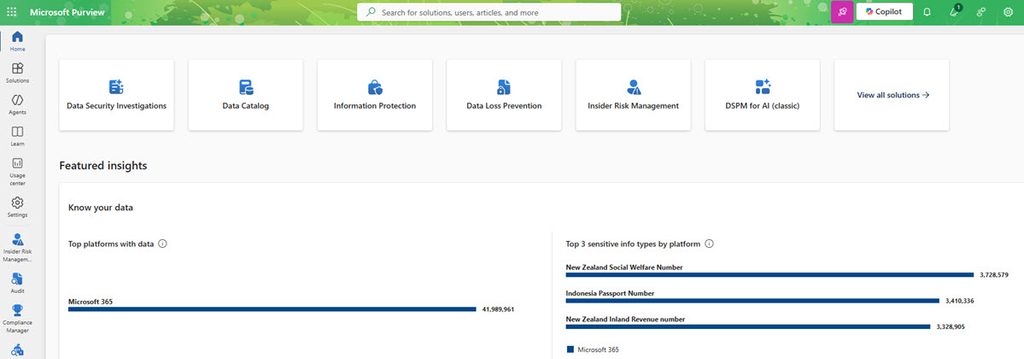
- You land on the home page, which has the solution cards, the compliance posture status and the trials section.
By the way, the home page depends on who you are. Cards and features appear only if you have the permissions and a supported subscription for them, so two admins in the same tenant can see different pages.
What You See on the Home Page and Left Menu
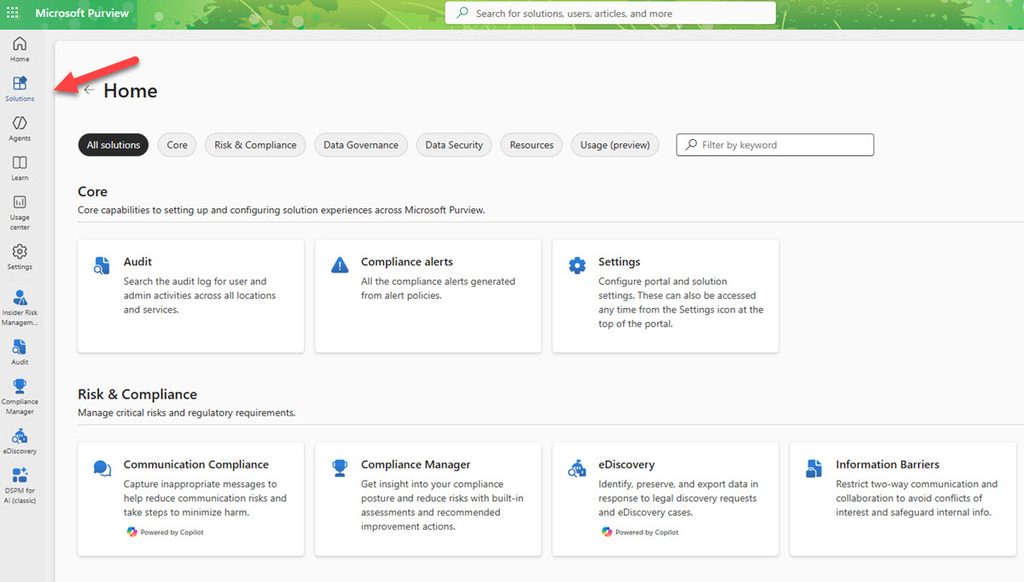
The left navigation has Home, Solutions, Agents, Learn, Usage center and Settings, plus quick links to the five solutions you opened most recently. A global search box at the top finds menu items, users and resources.
On the home page you will find:
- Solution cards for the solutions you can open. Select View all solutions for the full list.
- Compliance posture status, which shows the numbers from Compliance Manager.
- Trials and recommendations, where you start trials for solutions you do not have yet.
- Knowledge Center, with Microsoft’s articles, demos and tutorials.
The Solutions page groups everything into four sections: Core, Risk & Compliance, Data Governance and Data Security. Use the filters or the search box when the list is long.
The release notes icon at the top right shows Message center announcements for Purview solutions. You need the Message Center Reader, Global Reader or Global Administrator role to see them.
Microsoft Purview Solutions at a Glance
Purview is a family of solutions, so it helps to know the names. This is the short version of what each one does, based on Microsoft’s solution overviews.
| Area | Solution | What it is for |
|---|---|---|
| Compliance | Audit | Search the unified audit log of user and admin activity |
| Compliance | eDiscovery | Find, preserve and export content for legal or regulatory cases |
| Compliance | Data Lifecycle Management | Retain or delete content with retention policies |
| Compliance | Records Management | Declare records and manage disposition |
| Compliance | Communication Compliance | Detect inappropriate messages in email and Teams |
| Compliance | Compliance Manager | Track your compliance score and improvement actions |
| Data security | Information Protection | Classify and protect data with sensitivity labels |
| Data security | Data Loss Prevention | Stop accidental sharing of sensitive information |
| Data security | Insider Risk Management | Spot and triage risky user activity |
| Data security | Data Security Posture Management | See and fix sensitive data risks, including AI apps |
| Data governance | Unified Catalog | Find and govern data assets across your estate |
There are more (Information Barriers, Privileged Access Management, Data Security Investigations), but the ones above are what most Microsoft 365 admins touch first.
Roles and Permissions: Who Can Open What
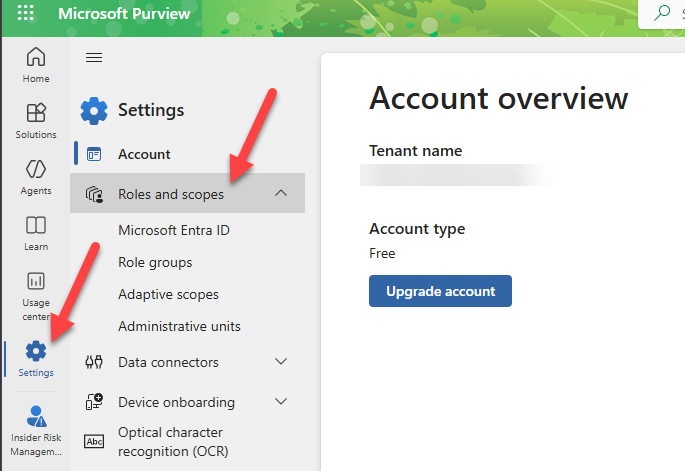
Permissions use role-based access control. You manage them under Settings > Roles and scopes, where Role groups holds the groups for each solution. Microsoft’s permissions guide lists the roles for every solution.
Two points that catch people:
- To even see Role groups, you need to be a Global Administrator or hold the Role Management role. That role sits only in the Organization Management role group.
- Microsoft recommends least privilege and as few Global Administrators as possible. For daily compliance work, a Microsoft Entra role such as Compliance Administrator or Compliance Data Administrator is the better fit than Global Administrator.
To add a person to a role group:
- Sign in to the portal with an account that has the Role Management role.
- Go to Settings > Roles and scopes > Role groups.
- Select the role group, then Edit.
- Select Choose users (or Choose groups), pick the accounts and select Next, then Save.
A few more details from the same Microsoft page, since they explain odd behaviour later:
- If a user has both an Entra role and a scoped Purview role group (for example scoped to an administrative unit), the Entra role wins and the access ends up unscoped.
- If you use Privileged Identity Management for security groups that sit in Purview role groups, it can take up to two hours after activation before the permissions apply.
- Purview permissions do not cover everything. Exchange-specific items such as mail flow rules are still managed in the Exchange admin center.
Licensing and the 90-Day Trial
Permissions get you in, but the license decides which solutions show up. The licensing name to know is Microsoft Purview Suite, which Microsoft says was formerly known as Microsoft 365 E5 Compliance. Check each solution in Microsoft’s service description before you plan a rollout.
If you want to try the E5-level compliance solutions, there is a free Purview Suite trial for 90 days. These are the details from Microsoft:
- You are eligible if you do not already have an E5 package and you have Microsoft 365 E3, or Office 365 E3 together with Enterprise Mobility and Security E3. It is not available for Microsoft 365 Government customers.
- The trial applies 25 Purview Suite licenses to your organization.
- A Billing Administrator, Compliance Administrator, Compliance Data Administrator or Global Administrator can start it.
- Start from Home > Trials and recommendations > View all trials and recommendations, then use Get started on the Microsoft Purview setup card.
- It can take up to two hours for the new solutions to appear. Sign out and sign back in.
First Task: Search the Audit Log
Auditing is the quickest way to see something useful in a new tenant. Microsoft says audit log search is on by default for Microsoft 365 and Office 365 enterprise organizations.
- In the portal, select the Audit card. If it is not there, select View all solutions, then Audit in the Core section.
- On the Search page, set the date range. The last seven days are selected by default and the maximum is 180 days.
- Add users, activities or a keyword if you want to narrow it down, give the search a name and select Search.
- Open the finished job from the search job list to see the results, and use Export if you need a CSV.
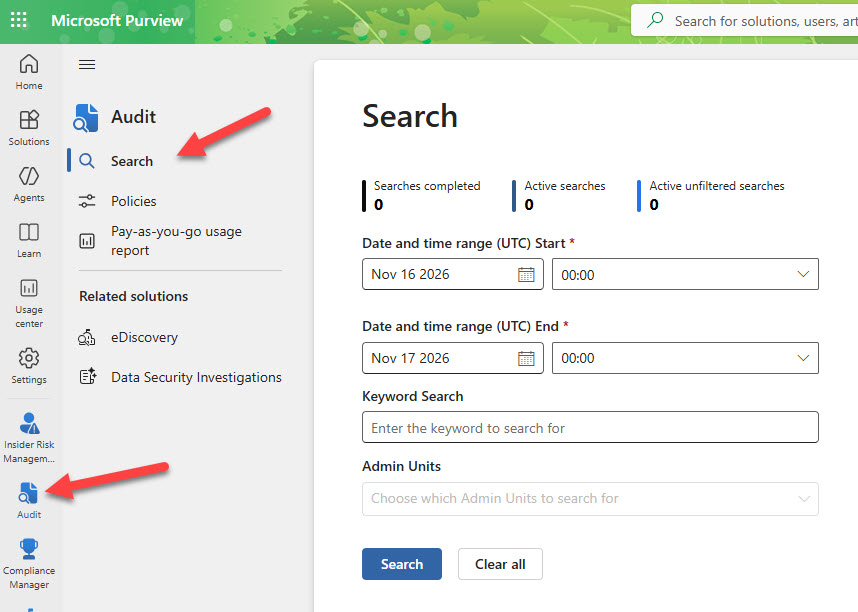
To search the audit log you need the Audit Logs or View-Only Audit Logs role. Records for core services such as Exchange, SharePoint, OneDrive and Teams usually show up 60 to 90 minutes after the event, so do not worry if something from five minutes ago is missing.
How long records stay searchable depends on the license. Microsoft documents 180 days for non-E5 licenses and one year for E5 or Purview Suite users (for Entra, Exchange and SharePoint activity).
If the search returns nothing at all, check that ingestion is on. Run this in Exchange Online PowerShell (not Security & Compliance PowerShell, where the value always shows False):
Get-AdminAuditLogConfig | Format-List UnifiedAuditLogIngestionEnabledTrue means audit log search is turned on.
Second Task: Create a Retention Policy
A retention policy keeps content, deletes it, or keeps it for a period and then deletes it. This is the example most admins need first, for mailboxes, SharePoint and OneDrive.
- Go to Solutions > Data Lifecycle Management > Policies > Retention policies.
- Select New retention policy and name it.
- On the admin units page, keep Full directory.
- Choose Static or Adaptive. Adaptive needs scopes that you created before this step.
- Pick the locations, for example Exchange mailboxes, SharePoint sites and OneDrive accounts.
- Decide whether to retain, delete, or both, set the period and save.
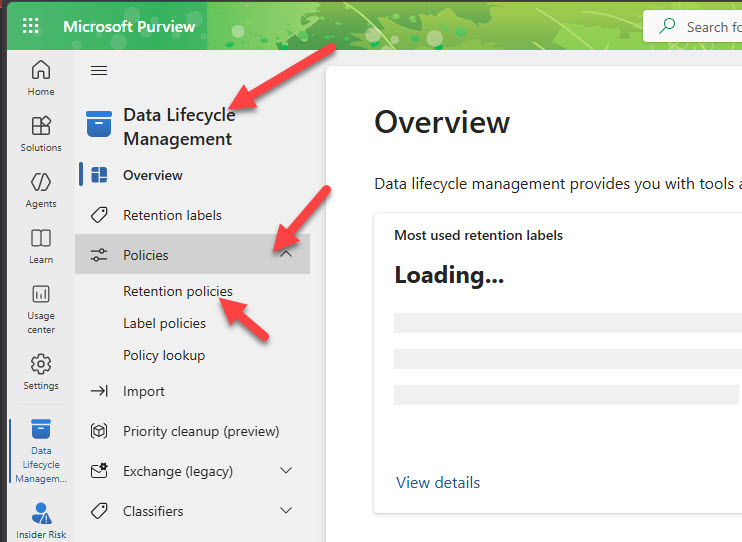
Two things to plan for. First, one retention policy cannot include every location. Teams and Viva Engage locations need their own static policy. Second, a new policy can take up to seven days to be applied, so do not judge it on day one. If distribution shows an error, Microsoft’s page gives a -RetryDistribution command, and here is how to connect with Security & Compliance PowerShell to run it.
My view: start with a narrow scope, such as one test group of mailboxes, before you apply anything that deletes content. Deletion is the part you cannot easily undo.
Third Task: Open Compliance Manager
Select Compliance Manager in the left navigation. Your first score is based on the Microsoft 365 data protection baseline, which Microsoft says is available to all organizations. Automatic testing of improvement actions is on by default, and it takes about seven days to collect data and factor it into the score.
So an empty or low score on day one is normal. Come back after a week, open Improvement actions and start with the ones listed under key improvement actions on the Overview page.
Read also: Microsoft Graph PowerShell Tutorial: Install, Connect and Do Real M365 Admin Tasks
Why Can’t I See a Solution or Setting?
From Microsoft’s documentation, these are the usual causes:
- No permission. Cards and features show only for roles that can use them. Check the role group for that solution.
- No license. The solution needs a supported subscription. A trial can fix this for evaluation.
- Waiting period. A new trial or a Privileged Identity Management activation can take up to two hours to show.
- Role groups missing. You need Global Administrator or the Role Management role to see them.
FAQ
What is the Microsoft Purview compliance portal?
It was the web portal for compliance tools in Microsoft 365, such as audit, eDiscovery and retention. That classic portal is retired. The same tools, plus data security and data governance, now sit in the Microsoft Purview portal at purview.microsoft.com.
How do I access the Microsoft Purview portal?
Go to purview.microsoft.com and sign in with a work account that has a compliance role, for example Compliance Administrator. You only see solutions that your permissions and license cover.
Who can access the Microsoft Purview portal?
Anyone with a role for at least one Purview solution and a supported license. You do not need Global Administrator for daily work. You do need it, or the Role Management role, to view and edit role groups.
Is Microsoft Purview free?
Not all of it. Solutions depend on your license, and there is a 90-day Purview Suite trial for eligible tenants. The data governance part also has a free version with limited capabilities, meant for evaluation.
