


The MSOnline and AzureAD PowerShell modules are gone. MSOnline was retired in spring 2025 and AzureAD stopped working from mid-October 2025, so any old script that starts with Connect-MsolService or Connect-AzureAD now fails. Microsoft Graph PowerShell is the replacement, and it works differently enough that your old habits will trip you up.
In this guide, I’ll show how to install it properly, connect with only the permissions you need, and run the everyday Microsoft 365 admin tasks: user lookups, licence reports, stale accounts and group members. Further down there is a cmdlet mapping table for old MSOnline/AzureAD scripts, a short part on unattended scripts and the errors you will probably hit.
Quick answer: Install only the Microsoft Graph PowerShell submodules you need (Users, Users.Actions, Groups, Identity.DirectoryManagement), connect with
Connect-MgGraph -Scopesusing the smallest permissions, add-Allto every list command (otherwise you get only 100 results), and useFind-MgGraphCommandto find the right cmdlet and permission. Use PowerShell 7 if you can.

What You Need Before You Start
- PowerShell 7.x is Microsoft’s recommended version. Windows PowerShell 5.1 also works, but it needs .NET Framework 4.7.2 or later and an updated PowerShellGet. Not sure which one you have? Check it with
$PSVersionTable.PSVersion(here is our guide on checking and updating the PowerShell version). - Execution policy set to RemoteSigned or less restrictive:
Get-ExecutionPolicy
Set-ExecutionPolicy -ExecutionPolicy RemoteSigned -Scope CurrentUser- An admin account with the right Entra ID role for the job. Reading users needs much less than writing them, and granting tenant-wide consent for admin permissions usually needs the Privileged Role Administrator role (or Global Administrator).

My test machine was running Windows PowerShell 5.1 (build 26100). When I checked the installed modules, a few Graph modules were already there at version 2.37.0, while the current release on the PowerShell Gallery was 2.41.1.
PS C:\> $PSVersionTable.PSVersion

Major  Minor  Build  Revision
-----  -----  -----  --------
5      1      26100  9444

PS C:\> Get-InstalledModule Microsoft.Graph* | Select Name, Version

Name                                  Version
----                                  -------
Microsoft.Graph.Authentication        2.37.0
Microsoft.Graph.Beta.DeviceManagement 2.37.0
Microsoft.Graph.Users                 2.37.0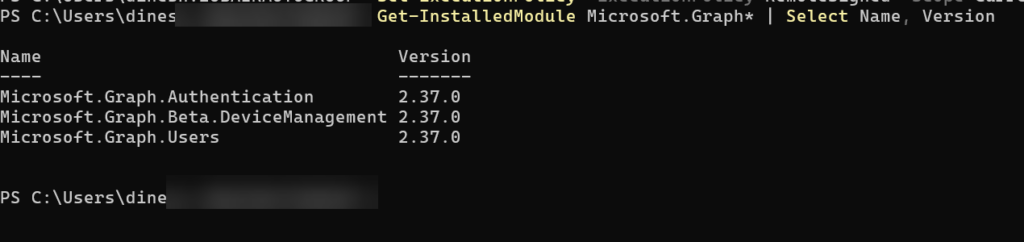
So before installing anything new, I’d update these. If you install Microsoft.Graph.Users.Actions today it comes in at 2.41.1, next to an old 2.37.0 Users and Authentication module. Mixed versions in one session are asking for load errors, so keep every Graph submodule on the same version:
Update-Module Microsoft.Graph.Authentication, Microsoft.Graph.UsersInstall the Microsoft Graph PowerShell Module
1) Lean Install (Recommended)
The full Microsoft.Graph module installs more than 47 submodules. For user and group work (including licences), these four are enough:
Install-Module Microsoft.Graph.Users, Microsoft.Graph.Users.Actions, Microsoft.Graph.Groups, Microsoft.Graph.Identity.DirectoryManagement -Scope CurrentUser -Repository PSGallery -ForceMicrosoft.Graph.Authentication (which has Connect-MgGraph) comes along automatically. Note that Set-MgUserLicense lives in Microsoft.Graph.Users.Actions, not in Microsoft.Graph.Users. Skip that module and Set-MgUserLicense is simply not found.
If you have better internet, the download and install process will be pretty fast; it just took 1 minute for me.
2) Full Install
If you prefer everything in one go:
Install-Module Microsoft.Graph -Scope CurrentUser -Repository PSGallery -Force
Get-InstalledModule Microsoft.Graph
To update later, run Update-Module Microsoft.Graph (or update each submodule you installed). Remember that a module installed in PowerShell 7 is not available in Windows PowerShell 5.1 and vice versa. Install it in the edition you will use.
Leave the Beta Module Alone for Now
There is a separate Microsoft.Graph.Beta module with cmdlets like Get-MgBetaUser. It calls the Graph beta endpoint, which Microsoft says can change without notice, so keep it out of production scripts unless a feature exists only there. Older guides still show Select-MgProfile -Name beta. That cmdlet was removed in version 2 of the SDK, so it will not work.
Connect With Only the Permissions You Need
This is the biggest change from MSOnline. Connect-MsolService gave you whatever your admin role allowed. With Graph, you ask for permissions (scopes) when you connect, and the app gets consent for them.
For read-only work on users and groups, plus licence and sign-in data:
Connect-MgGraph -Scopes "User.Read.All","Group.Read.All","Organization.Read.All","AuditLog.Read.All"On Windows, recent versions of the module sign you in through WAM (Web Account Manager), so you get the Windows account picker instead of a browser window. The first time you request a permission, you also see a consent screen.
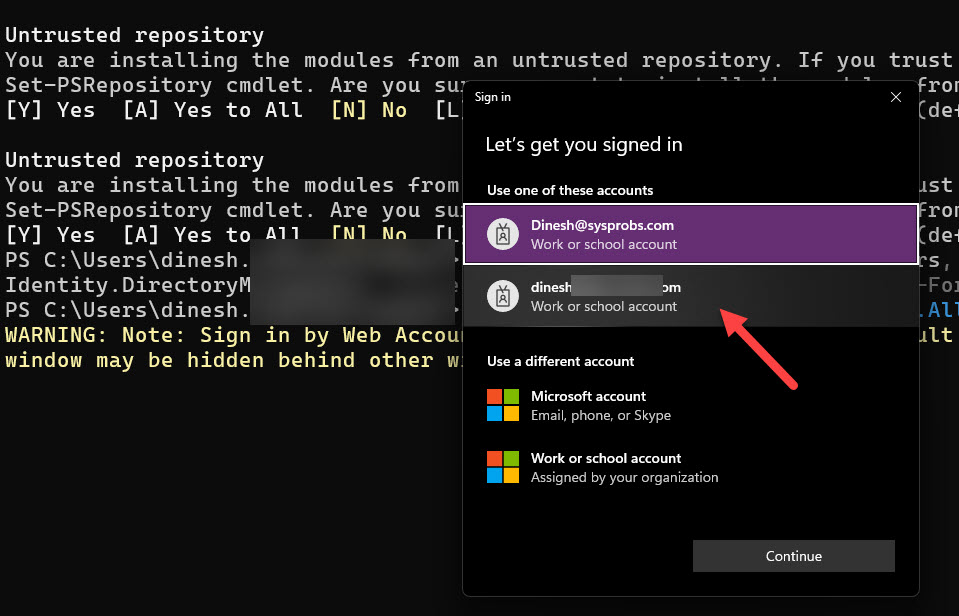
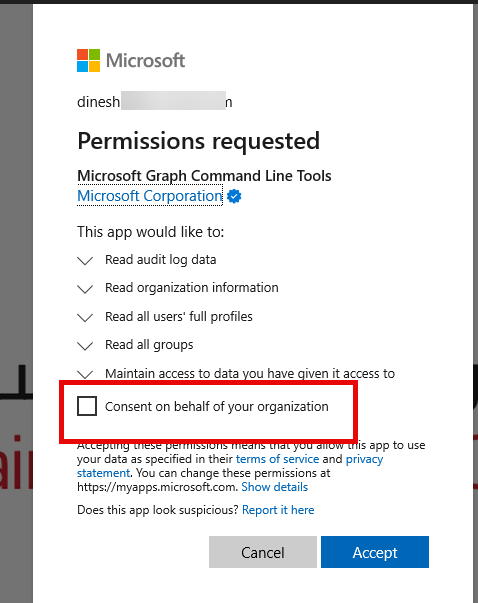
I saw the WAM picker. Since I have two Office 365 admin accounts, I selected the correct account. Once the password and MFA are provided, time for Consent on behalf of your organization
Be careful with that consent box. If you tick it, every user who connects through the ‘Microsoft Graph Command Line Tools’ app gets those permissions consented (their own role still limits what they can actually do). I’d consent only for yourself unless you have a reason.
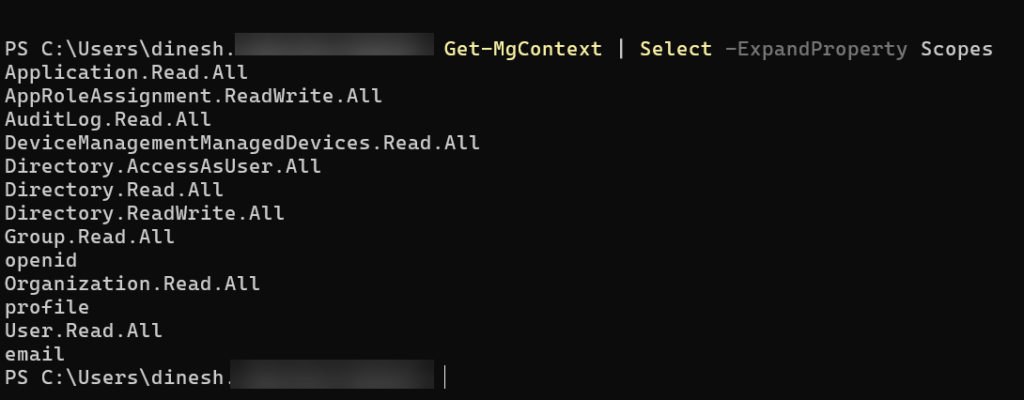
Check what you are connected as:
Get-MgContext
Get-MgContext | Select -ExpandProperty Scopes
The sign-in stays cached across PowerShell sessions until you run Disconnect-MgGraph. On a shared jump box, always disconnect when you finish, or connect with -ContextScope Process so the token is only kept for that window.
Find the Right Cmdlet and Permission
Graph PowerShell has thousands of cmdlets, and guessing the name or the scope wastes time. These two help:
# Which permissions does Get-MgUser need?
Find-MgGraphCommand -Command Get-MgUser | Select -First 1 -ExpandProperty Permissions

# I know the Graph API URL, which cmdlet calls it?
Find-MgGraphCommand -Uri "/users/{id}/memberOf"

# Search permissions by keyword
Find-MgGraphPermission user -PermissionType Delegated
The permission list shows every scope that works, not the least privileged one. Pick the Read scope when you are only reading.
Real Admin Tasks With Microsoft Graph PowerShell
1) List and Filter Users (Watch the 100 Limit)
(Get-MgUser).Count        # returns 100 at most
(Get-MgUser -All).Count   # all users
Without -All, Get-MgUser returns only the first page of 100 users and gives no warning. This is the most common reason for “my report is missing people”.
Filters use OData syntax, not PowerShell operators. -like and wildcards do not work.
# Guests
Get-MgUser -Filter "userType eq 'Guest'" -All

# Disabled accounts
Get-MgUser -Filter "accountEnabled eq false" -All -Property DisplayName,UserPrincipalName |
  Select DisplayName,UserPrincipalName

# Names starting with 'Ahmed'
Get-MgUser -Filter "startsWith(displayName,'Ahmed')" -All
By default Get-MgUser returns only a handful of properties. If a column comes back empty, ask for it with -Property.
2) Advanced Filters Need ConsistencyLevel
Some filters (endsWith, ne, not, counting) are “advanced queries” in Graph. They only work with -ConsistencyLevel eventual and a count variable:
Get-MgUser -Filter "endsWith(userPrincipalName,'onmicrosoft.com')" -ConsistencyLevel eventual -CountVariable total -All
$total
Run the same command without the last part and you get an error.
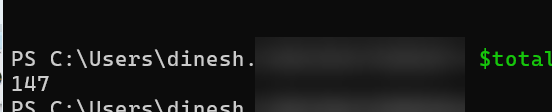
Also, endsWith works only on a few user properties (mail, otherMails, userPrincipalName and proxyAddresses).
3) Licence Report and Assigning a Licence
See what you own and what is used:
Get-MgSubscribedSku -All |
  Select SkuPartNumber, ConsumedUnits, @{n='Enabled';e={$_.PrepaidUnits.Enabled}}
Count users with no licence:
Get-MgUser -Filter 'assignedLicenses/$count eq 0' -ConsistencyLevel eventual -CountVariable unlicensed -All | Out-Null
$unlicensed
The type of license details via PowerShell and export to CSV is the best way to analyze your license status and get great insights with the help of AI, rather than relying on the Office 365 admin portal.
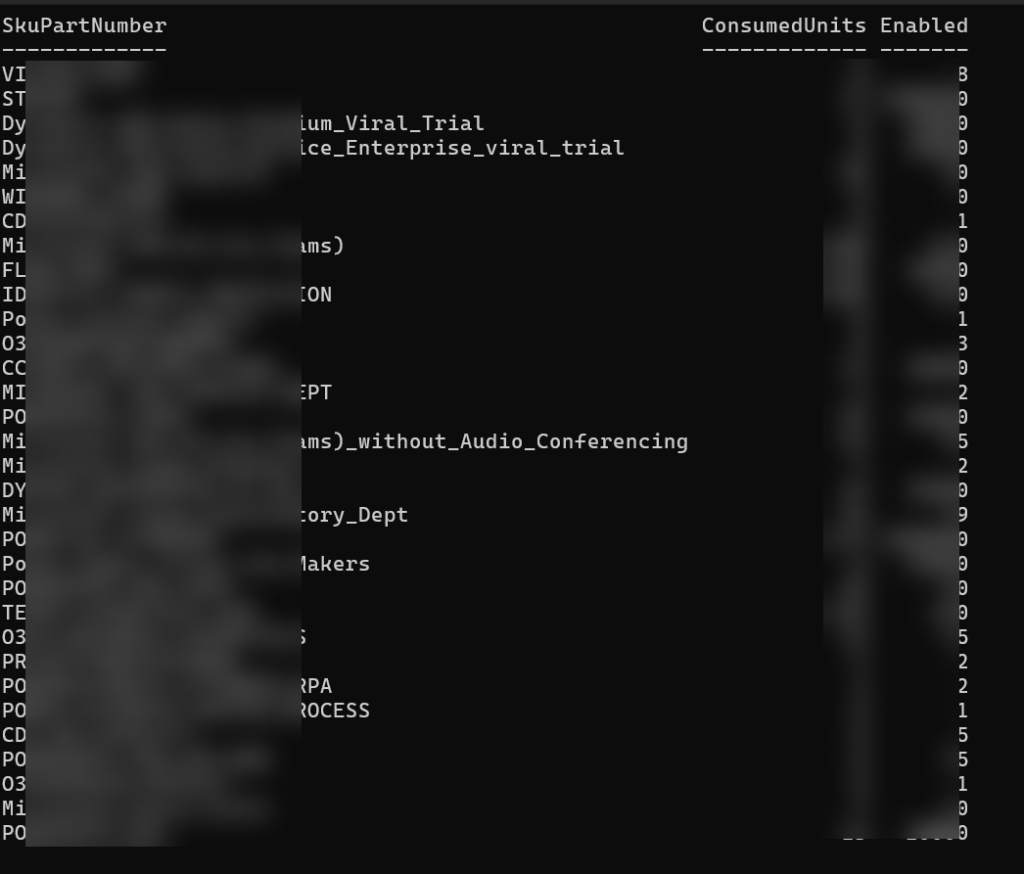
To assign a licence, the user needs a usage location first (a two-letter country code). This needs write permissions, so reconnect with them:
Connect-MgGraph -Scopes "User.ReadWrite.All","Organization.Read.All"

Update-MgUser -UserId testuser@contoso.onmicrosoft.com -UsageLocation OM

$sku = Get-MgSubscribedSku -All | Where SkuPartNumber -eq 'SPE_E3'
Set-MgUserLicense -UserId testuser@contoso.onmicrosoft.com -AddLicenses @{SkuId = $sku.SkuId} -RemoveLicenses @()

Get-MgUserLicenseDetail -UserId testuser@contoso.onmicrosoft.com
Replace SPE_E3 with the SkuPartNumber from your own report. -RemoveLicenses @() is required even when you are not removing anything.
4) Find Stale Accounts With signInActivity
This is the report I’d use most. The signInActivity property shows the last sign-in for each user. It needs the AuditLog.Read.All permission and a Microsoft Entra ID P1 or P2 licence in the tenant. Without them the values come back empty or the call fails.
$cutoff = (Get-Date).AddDays(-90)

Get-MgUser -All -Property DisplayName,UserPrincipalName,AccountEnabled,SignInActivity |
  Where-Object { $_.AccountEnabled -and $_.SignInActivity.LastSuccessfulSignInDateTime -lt $cutoff } |
  Select DisplayName,UserPrincipalName,@{n='LastSuccess';e={$_.SignInActivity.LastSuccessfulSignInDateTime}} |
  Export-Csv .\stale-users.csv -NoTypeInformation
I use LastSuccessfulSignInDateTime rather than LastSignInDateTime because the second one also records failed attempts, so an account under password spray looks “active”. LastSuccessfulSignInDateTime is only populated from December 2023 onwards, so a blank value means no successful sign-in since then (or never), and those accounts still deserve a look.
5) Group Members
$g = Get-MgGroup -Filter "displayName eq 'IT Team'"
Get-MgGroupMember -GroupId $g.Id -All |
  ForEach-Object { $_.AdditionalProperties.userPrincipalName }
Get-MgGroupMember returns directory objects, so the output shows only IDs. The user details are inside AdditionalProperties. Expect this the first time you run it.
Moving From MSOnline and AzureAD
If you have old scripts, this table covers the common user, licence and group cmdlets. Microsoft keeps the full list in its cmdlet map for Azure AD and MSOnline.
| MSOnline | AzureAD | Microsoft Graph PowerShell |
|---|---|---|
| Connect-MsolService | Connect-AzureAD | Connect-MgGraph |
| Get-MsolUser | Get-AzureADUser | Get-MgUser |
| New-MsolUser | New-AzureADUser | New-MgUser |
| Set-MsolUser | Set-AzureADUser | Update-MgUser |
| Remove-MsolUser | Remove-AzureADUser | Remove-MgUser |
| Get-MsolAccountSku | Get-AzureADSubscribedSku | Get-MgSubscribedSku |
| Set-MsolUserLicense | Set-AzureADUserLicense | Set-MgUserLicense |
| Get-MsolGroupMember | Get-AzureADGroupMember | Get-MgGroupMember |
| Add-MsolGroupMember | Add-AzureADGroupMember | New-MgGroupMemberByRef |
The names map easily, but the parameters and output do not. Get-MsolUser returned licence details by default, while Get-MgUser returns a short default set, so most scripts need -Property added.
If you have a big pile of AzureAD scripts and no time to rewrite them, Microsoft’s Entra PowerShell module (Microsoft.Entra, built on top of the Graph SDK) has a compatibility mode:
Install-Module Microsoft.Entra -Scope CurrentUser -Repository PSGallery -Force
Connect-Entra -Scopes "User.Read.All"
Enable-EntraAzureADAlias
Get-AzureADUser -Top 5
Enable-EntraAzureADAlias makes the old AzureAD cmdlet names work in that session. I’d treat it as a bridge to keep things running while you rewrite, not a place to stay.
Running Scripts Unattended (App-Only Access)
Everything above is delegated access: you sign in, and the script runs as you. For a scheduled task (like a weekly stale account report), use app-only access with a certificate instead. In short:
- Create a certificate (self-signed is fine for internal scripts) and keep it in the certificate store of the machine that runs the task.
- In the Microsoft Entra admin center, go to App registrations > New registration, upload the public key (.cer) under Certificates & secrets, add the Microsoft Graph Application permissions the script needs, and grant admin consent.
- Connect with the certificate:
Connect-MgGraph -ClientId "APP_ID" -TenantId "TENANT_ID" -CertificateThumbprint "THUMBPRINT"
Get-MgContext | Select AuthType, AppName, Scopes
Get-MgContext should show AuthType ‘AppOnly’. Microsoft’s app-only authentication guide has the full walkthrough.
Two habits worth having here. Use a certificate rather than a client secret, since a secret in a script file ends up copied everywhere. And give the app only the application permissions that one script needs. Application permissions apply tenant-wide with no user role to limit them.
For admins who connect interactively, Microsoft also suggests a custom app registration instead of the shared ‘Microsoft Graph Command Line Tools’ app, with Assignment required set to Yes, so only named admins can use it and its consented permissions stay separate. The steps are in the authentication commands documentation.
Troubleshooting Common Microsoft Graph PowerShell Errors
1) Insufficient Privileges (403 Authorization_RequestDenied)
This error means the scopes you connected with do not cover the command. A classic case is connecting read-only and then running Update-MgUser.
Find the permission and reconnect with it:
Find-MgGraphCommand -Command Update-MgUser | Select -First 1 -ExpandProperty Permissions
Connect-MgGraph -Scopes "User.ReadWrite.All"
If it still fails after that, the problem is your Entra role, not the scope. Scopes cannot give you more than your role allows. Add -Debug to the command to see the scopes in your token and the request ID.
2) Function Capacity 4096 Has Been Exceeded
This happens in Windows PowerShell 5.1 when you import the full Microsoft.Graph module (often together with other large modules like ExchangeOnlineManagement), because 5.1 has a limit on how many functions a session can hold. The fixes, in the order I’d try them: use PowerShell 7, or import only the submodules you need instead of the full module.
3) Sign-In Window Does Not Appear or “Window Handle” Error
Since the move to WAM sign-in, connecting from an embedded terminal (VS Code, for example) can fail or hide the sign-in window behind other windows. Run Connect-MgGraph from a normal PowerShell window, or use device code sign-in:
Connect-MgGraph -Scopes "User.Read.All" -UseDeviceAuthentication4) signInActivity Is Empty
Check three things: the AuditLog.Read.All scope is in Get-MgContext, the tenant has Entra ID P1 or P2, and you added SignInActivity to -Property.
FAQ
Do MSOnline and AzureAD PowerShell Still Work?
No. MSOnline was retired in spring 2025, and the AzureAD and AzureAD-Preview modules stopped working from mid-October 2025, according to Microsoft’s Entra blog. Scripts must move to Microsoft Graph PowerShell or Microsoft Entra PowerShell.
Should I Use Microsoft Graph PowerShell or Entra PowerShell?
For new scripts, I’d use Microsoft Graph PowerShell because it covers Microsoft 365 services beyond Entra ID, and most examples online use it. Entra PowerShell is built on the same SDK and is handy for its AzureAD compatibility mode. You can install both on the same machine.
Why Does Get-MgUser Return Only 100 Users?
The Graph API returns 100 users per page by default, and Get-MgUser returns only the first page unless you add -All.
Is Microsoft Graph PowerShell Free?
The module is free from the PowerShell Gallery. Some data needs a licence: sign-in activity, for example, needs Microsoft Entra ID P1 or P2.
