


If a backup tool, a Mac mail client or an old script suddenly lost its mailbox connection, EWS is probably blocked in your tenant. Microsoft is switching Exchange Web Services (EWS) off in Exchange Online one tenant at a time, and the way to keep an app alive until April is the EWSAllowedAppIDs list. Without that list, EwsEnabled set to True now blocks everything.
In this guide, I’ll show how to check your tenant state, find the apps that still call EWS, write the list without wiping what is already there, limit EWS per mailbox and test the result. If something is already broken, jump to “EWS Already Blocked and Something Broke?” and come back later.
EWSAllowedAppIDs is the tenant-level list of Entra application (client) IDs that may still use EWS in Exchange Online. Since enforcement started, the tenant switch set to True with an empty list blocks all EWS. Find the apps in the EWS usage report, write the list with Set-OrganizationConfig, then set the switch to True. EWS ends on 1 April 2027.
Check Your EWS State Before You Change Anything
You need Exchange Online PowerShell and an account that can read and change the organization config (an Exchange administrator is enough). Not sure which PowerShell you are on? See what version of PowerShell do I have first. Then connect and run three checks:
Connect-ExchangeOnline
Get-OrganizationConfig | Format-List EwsEnabled
Get-OrganizationConfig -RetrieveEwsOperationAccessPolicy | Format-List EwsAllowedAppIDs
Get-CASMailbox user@yourdomain.com | Format-List EwsEnabled
The -RetrieveEwsOperationAccessPolicy switch is required. Leave it out and the list does not show at all, which looks like an empty list when it is not.
This is what each combination does today, taken from Microsoft’s announcement post:
| EwsEnabled | App ID list | Result |
|---|---|---|
| Null (blank, the old default) | Ignored | All EWS allowed, until Microsoft sets your tenant to False |
| True | Empty or Null | All EWS blocked |
| True | Has App IDs | Only those apps can use EWS |
| False | Anything | All EWS blocked |
Cross-tenant organization relationship traffic (free/busy, MailTips, calendar sharing) keeps working with True, even when the list is empty.
The timing matters, because several posts still describe a single switch on 1 October. It was never one switch. On 10 and 11 October Microsoft filled the list for worldwide tenants that already had True and no list. Tenants still on Null get a Message Center post seven days ahead. Then Microsoft fills the list and sets the tenant to False. That second phase has started and runs tenant by tenant.
So search your Message Center for “Action may be required: EWS will be disabled in your tenant in 7 days” and “EWS has been disabled in your tenant”. Either post tells you what Microsoft already did.
Do not trust the auto-filled list blindly. It comes from the last 60 days of usage. A quarterly job is missing from it, and an app you retired last month may still be in it.

How Do I Find Which Apps Use EWS in Exchange Online?
Finding apps using EWS takes more than one source, because none of them shows everything. I would start with the usage report, add the script and the permission query, then ask vendors about whatever is left.
The EWS Usage Report in the Microsoft 365 Admin Center
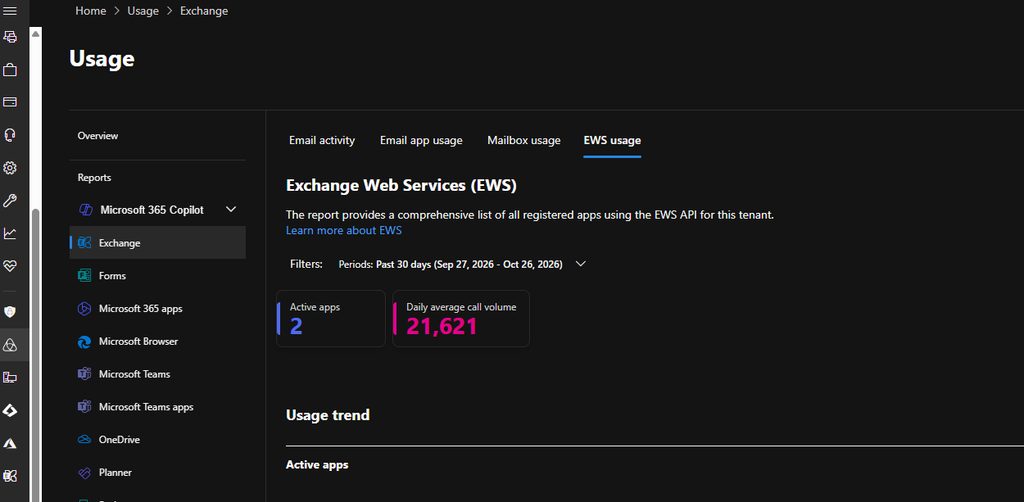
Go to the Microsoft 365 admin center, select Reports, then Usage, then Exchange, and open the EWS usage tab. You can filter the last 7, 30 or 90 days. The details table lists the Application ID, SOAP action, call volume and last activity date (UTC) for each app. Export gives you a CSV.
Two limits. The data is aggregated weekly and can take up to 10 days to show, so yesterday’s calls are not there yet. And Microsoft’s Exchange team says the report is available only in the worldwide cloud, so government and sovereign tenants have to use the script below. The EWS usage report page on Microsoft Learn has the details.
Your Message Center may also hold posts titled “Update active Exchange Web Services Applications”, Microsoft’s tenant-specific usage summaries sent since late December. No such post usually means little or no EWS use.
Turn App IDs Into Names
The report gives GUIDs, not names. Check Microsoft’s list of first-party app IDs first. Two you will meet quickly are Microsoft Office (d3590ed6-52b3-4102-aeff-aad2292ab01c) and Microsoft Power Query for Excel (a672d62c-fc7b-4e81-a576-e60dc46e951d). For anything else, open Microsoft Entra admin center > Enterprise applications and search by application ID.
Find-EwsUsage.ps1 for Owners and Last Sign-In
The report tells you what calls EWS. It does not tell you who owns the app. Microsoft’s Exchange team published Find-EwsUsage.ps1 in the Exchange-App-Usage-Reporting repository on GitHub for that gap. The script needs its own app registration in Entra with the Graph permissions AuditLogsQuery.Read.All and Application.Read.All. The team’s walkthrough also lists AuditLogs.Read.All and Directory.Read.All for the sign-in and licence steps. Authentication is a certificate or a client secret.
It has three operations:
GetEwsActivitylists app registrations that hold EWS permissions, with their last sign-in.GetAppUsagepulls sign-in or audit log events for one app.GetUserLicensesreads the sign-in CSV and shows each user’s Exchange licence, so you can spot Kiosk and Frontline users.
Sort the CSV by last sign-in. An app with no sign-in data is not safe to ignore. Treat it as “needs validation”.
Apps That Hold EWS Permissions but Have Not Called It Yet
An app can hold the permission and still be quiet inside your 90-day window. The permission names on the Office 365 Exchange Online API are EWS.AccessAsUser.All (delegated) and full_access_as_app (application). The Graph PowerShell SDK can list who holds them. Use PowerShell 7, and see our Microsoft Graph PowerShell tutorial if you have never connected before.
Connect-MgGraph -Scopes "Application.Read.All","Directory.Read.All"

$exo = Get-MgServicePrincipal -Filter "appId eq '00000002-0000-0ff1-ce00-000000000000'"

# Application permission: full_access_as_app
$appRole = "dc890d15-9560-4a4c-9b7f-a736ec74ec40"
Get-MgServicePrincipalAppRoleAssignedTo -ServicePrincipalId $exo.Id -All |
    Where-Object { $_.AppRoleId -eq $appRole } |
    ForEach-Object {
        $sp = Get-MgServicePrincipal -ServicePrincipalId $_.PrincipalId
        [pscustomobject]@{ Permission = "full_access_as_app"; Name = $sp.DisplayName; AppId = $sp.AppId }
    }

# Delegated permission: EWS.AccessAsUser.All
Get-MgOauth2PermissionGrant -Filter "resourceId eq '$($exo.Id)'" -All |
    Where-Object { $_.Scope -match "EWS.AccessAsUser.All" } |
    ForEach-Object {
        $sp = Get-MgServicePrincipal -ServicePrincipalId $_.ClientId
        [pscustomobject]@{ Permission = "EWS.AccessAsUser.All"; Name = $sp.DisplayName; AppId = $sp.AppId }
    }
PrincipalId and ClientId are object IDs of the service principals, not App IDs. That is why every result is looked up again, and the AppId column is the value that goes into the list. A 403 means a missing scope: add the scope it names and reconnect.
What All of These Miss
- Monthly or quarterly jobs that did not run inside the window you looked at.
- Outlook for Windows on an old build. Microsoft asks for build 16.0.20430.20092 or later, and says a forced client configuration can be the reason Outlook still needs EWS.
- Classic Outlook for Mac, which needs the Microsoft Office App ID in the list. New Outlook for Mac does not use EWS.
- The Excel and Power BI Exchange connector (Power Query).
- Your dedicated Exchange hybrid app, if you run hybrid.
Write the Allow List Without Wiping It
This is the step that can break a working setup without any error message. The list goes in with Set-OrganizationConfig -EwsAllowedAppIDs as one comma-separated string:
Set-OrganizationConfig -EwsEnabled $true -EwsAllowedAppIDs "11111111-2222-3333-4444-555555555555,aaaaaaaa-bbbb-cccc-dddd-eeeeeeeeeeee"Whatever you pass replaces the whole value. There is no add or remove option, unlike EwsAllowList, which accepts @{Add=...; Remove=...}. The safe habit is to read the list, change it in memory, write it all back, and keep a copy first.
How Do I Add an App to EWSAllowedAppIDs Without Overwriting the List?
1) Save the current list to a file.
$raw = (Get-OrganizationConfig -RetrieveEwsOperationAccessPolicy).EwsAllowedAppIDs
$raw | Out-File .\ews-allowlist-backup.txt
2) Add the App ID. This version copes with an empty list and skips an ID that is already there. Microsoft’s first add example, from the announcement post, leaves a leading comma when the list is empty. Their later testing guide uses a split, trim and unique pattern, and the snippet below follows the same idea.
$newId = "<app-id-to-add>"
$ids = [System.Collections.Generic.List[string]]::new()
foreach ($id in ($raw -split '[,;\s]+')) { if ($id) { $ids.Add($id) } }
if ($ids -notcontains $newId) { $ids.Add($newId) }
$ids -join "`n" | Out-File .\ews-allowlist-new.txt
Set-OrganizationConfig -EwsAllowedAppIDs ($ids -join ",")
3) Remove an App ID.
$removeId = "<app-id-to-remove>"
$keep = $raw -split '[,;\s]+' | Where-Object { $_ -and $_ -ne $removeId }
Set-OrganizationConfig -EwsAllowedAppIDs ($keep -join ",")
Careful with that one. Remove the last entry while the tenant is on True and you are back to the block-all row in the table.
4) Check it. Run the Get command with -RetrieveEwsOperationAccessPolicy again. Then wait, because list changes take up to 24 hours. The servers refresh their cache once a day.
On a new setup, Microsoft’s own advice is to fill the list while the tenant is still on Null, wait a day, and only then set True. The switch change itself usually applies in under an hour, and rarely takes up to four.
What goes in the list is your call. Add apps you have confirmed you need, with an owner and a reason. Classic Outlook for Mac needs the Microsoft Office App ID. The Excel Power Query connector needs a672d62c-fc7b-4e81-a576-e60dc46e951d while the workbook owners move to the new Graph-based connectors. A backup or archive product has its own App ID, and you should take it from the vendor’s documentation or the product settings, never from a forum post. Veeam’s KB4820 is an example of a vendor telling you where to find it.
Limit EWS to Specific Mailboxes with Set-CASMailbox
EWS has a second switch at mailbox level. Since the change that finished rolling out on 31 March, EWS works only when both the organization and the mailbox allow it. A mailbox set to True no longer rescues an organization set to False.
Get-CASMailbox svc-backup@yourdomain.com | Format-List EwsEnabled
Set-CASMailbox svc-backup@yourdomain.com -EwsEnabled $false
The default for a mailbox is True, and the mailbox value only matters when the organization value is not False. Microsoft suggests this pattern: Set-CASMailbox -EwsEnabled $true only on the mailboxes that need EWS (service accounts, shared mailboxes a tool reads), $false on everyone else, then the organization to True. Add the App ID list and you have two gates, one for the app and one for the mailbox.
Preview before you change anything. This writes the mailboxes that would be switched off to a CSV and changes nothing:
$needEws = "svc-backup@yourdomain.com","svc-crm@yourdomain.com"
Get-CASMailbox -ResultSize Unlimited |
    Where-Object { $needEws -notcontains $_.PrimarySmtpAddress.ToString() } |
    Select-Object PrimarySmtpAddress, EwsEnabled |
    Export-Csv .\ews-mailboxes-to-disable.csv -NoTypeInformation
Read the CSV before you feed it to Set-CASMailbox. Classic Outlook for Mac users and some Outlook add-ins still run on EWS. The per-user switch works like disabling ActiveSync for one user, if you have done that before.
Prove the Allow List Works
Test on a trial or developer tenant if you can, because removing an ID can stop a real job. Microsoft’s testing guide uses a small script, Test-EWSAppAccess.ps1. The same shape works for a lab with two app registrations.
You need:
- A test mailbox with at least one message in the Inbox.
- Two Entra app registrations, one that will be on the list and one that will not. Give both the
full_access_as_apppermission on Office 365 Exchange Online, grant admin consent and create a client secret for each. Test-EWSAppAccess.ps1from the PowerShell-EWS-Scripts wiki.
Then:
- Set the tenant to Null, add only the first app to the list, and wait 24 hours.
- Set the tenant to True and wait about an hour.
- Run the script for each app against the test mailbox.
.\Test-EWSAppAccess.ps1 -AppId $appId -TenantId $tenantId -Mailbox $mailbox -SecretKey $secretKeyThe listed app should report that it accessed the mailbox and exit with code 0. The unlisted app should report a failure and exit with code 1. Check $LASTEXITCODE after each run.
Microsoft’s list of pitfalls has two traps worth repeating. Do not read an OAuth, consent or secret problem as an allow-list block: if the listed app fails too, fix authentication first. And if you remove an ID and test straight away, a success only means a server still has the old cache.
EWS Already Blocked and Something Broke?
Start with the Message Center. A post named “EWS has been disabled in your tenant” gives you the date. Then run the first check from the top of this guide. If the tenant shows False, that is your problem.
Microsoft published a re-enable guide on 21 October. Only a tenant admin can follow it, and Microsoft support cannot do it for you. There are two routes:
- Baseline Security Mode. In the Microsoft 365 admin center go to Settings > Org Settings > Security and Privacy > Baseline Security Mode. Click Block access to Exchange Web Services, clear Block your entire organization from using EWS and apply. Then tick it again and apply. The label is confusing: with the box ticked, the tenant is actually set to True with an allow list.
- PowerShell. Run
Set-OrganizationConfig -EwsEnabled $true.
Either way it usually works in under an hour, and rarely takes up to four. Then read the list with the Get command. It holds the apps Microsoft saw in the last 60 days, so compare it with your own inventory and add what is missing (up to 24 hours for those additions).
Setting the tenant back to Null also works, from PowerShell only. It lifts all restrictions and ends on 1 April 2027 like everything else. I would not leave a tenant there, because it brings back the unrestricted EWS you were trying to get rid of.
If an app is still refused after all that, look at the 403 response. Exchange Online sends an X-EWS-Policy-Reason header with one of two values:
- “EWS is disabled for this user or tenant” points at the organization or mailbox setting.
- “EWS is blocked by policy for this user or tenant” points at the App ID list or the older user-agent policy. It does not say which.
That older policy is EwsApplicationAccessPolicy with EwsAllowList or EwsBlockList. It also affects REST, and a request has to pass both gates. Microsoft’s example is Teams: with EnforceAllowList in use, the Teams user agent must be in the list, or Teams Calendar stays blocked even when the Teams App ID is allowed. The Learn page on controlling EWS access walks through the troubleshooting steps.
Hybrid, Skype for Business and Frontline Licences
On-premises Exchange keeps EWS. Only Exchange Online is affected. For hybrid, Microsoft’s guidance from 30 September covers on-premises mailboxes that have online archives, which Graph does not fully support yet. Keep the tenant on True, do not strip EWS permissions from your Exchange SE hybrid setup, and add the dedicated hybrid app to the allow list. Hybrid setups with no mailboxes on-premises, or no online archives for them, are not affected.
Running Skype for Business Server in hybrid? Microsoft’s Learn page says to add two App IDs: the server one, from Get-CsOAuthConfiguration | Format-List ServiceName, and the desktop client one, which is the same d3590ed6 ID as Microsoft Office. You also need the coming Skype update before 1 April 2027. The page still talks about an August deadline. That date has passed, so follow only the allow list steps.
Kiosk and Frontline licences are a separate gate. Microsoft moved the EWS block for users without EWS licence rights to October, so an integration that touches those mailboxes can fail even when the app is on the list. The GetUserLicenses operation of the script finds those users.
Plan the EWS to Microsoft Graph Migration Before 1 April 2027
The EWS retirement in Exchange Online ends on 1 April 2027, and the allow list only buys time until then. Microsoft says there are no extensions, and from that date admins lose control of the tenant switch.
Use Microsoft’s EWS to Graph mapping table to size each job. FindItem becomes List messages, SyncFolderItems becomes Get messages delta, GetUserAvailability becomes Get free/busy schedule, and GetUserOofSettings becomes Get user mailbox settings. Most tools call only a handful of these.
The deprecation page on Microsoft Learn links the EWS Analyzer for in-house code and lists the parity gaps. Most of them (archive and public folder import/export, the Exchange Admin API) are Q4 targets. Generic public folder CRUD, generic Microsoft 365 Group mailbox CRUD and discovery mailbox access will never come to Graph, so ask the vendor now if a tool of yours needs one of those.
For every vendor still on EWS, ask three things: which Graph-based version removes EWS, which release has it, and which App ID the product uses today.
FAQ
What happens if EwsEnabled is True and the allow list is empty?
All EWS is blocked, apart from cross-tenant organization relationship traffic. Before October that combination allowed everything.
Is EWSAllowList the same as EWSAllowedAppIDs?
No. EWSAllowList belongs to the old EwsApplicationAccessPolicy and matches user agent strings. It also affects REST. The App ID list matches Entra application IDs and only affects EWS. You do not need to change EWSAllowList for the retirement, and a request has to pass both if both are set.
How do I re-enable EWS after Microsoft blocked it?
Set the tenant to True and keep an allow list, either with the Baseline Security Mode toggle or with Set-OrganizationConfig -EwsEnabled $true. Expect up to an hour, rarely four, and up to 24 hours for list edits. This works only until 1 April 2027.
Does this affect Exchange Server on-premises or hybrid?
On-premises EWS is not being retired. A hybrid with mailboxes on-premises can keep rich coexistence over EWS until April 2027 by adding the dedicated hybrid app to the allow list. After that, those on-premises mailboxes need Exchange SE.
