


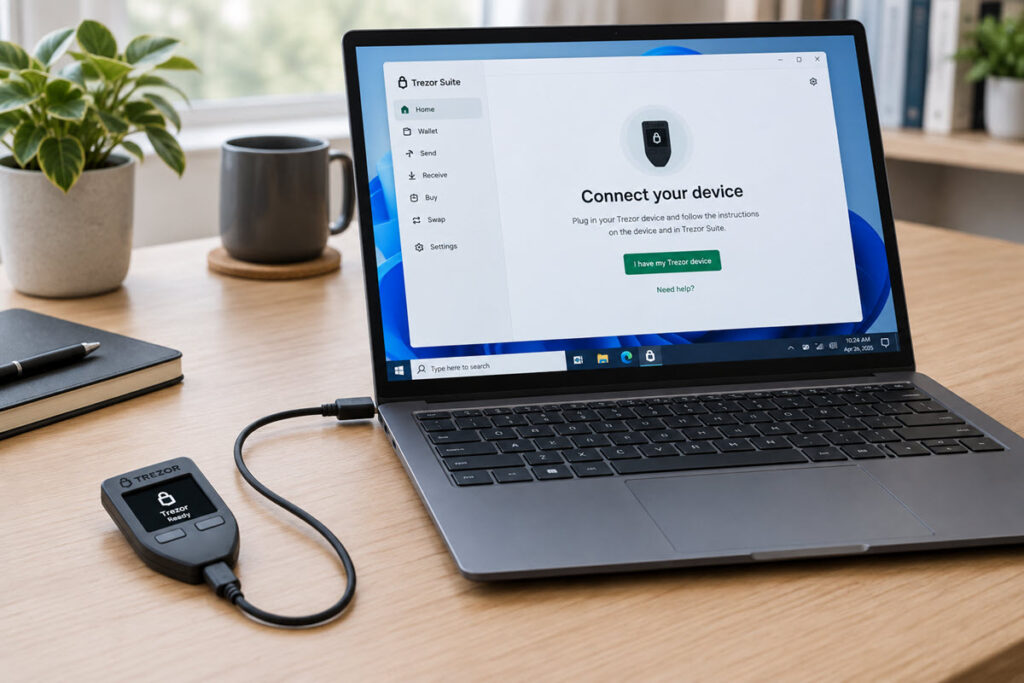
You plug in the Trezor, the screen lights up, but Trezor Suite keeps showing ‘Connect your Trezor’ as if nothing is attached. Trezor Suite not detecting device is a common problem on Windows 10/11, and most of the time the cause is simple: a charge-only cable, or the old Trezor Bridge software still sitting on the PC.
In this guide, I’ll show the fixes in the order I would try them on any Windows PC, starting with the quick ones.
Quick answer: Use the original Trezor cable (or a known data cable) plugged straight into the PC, not a hub or dock. Uninstall the old standalone Trezor Bridge, because Suite now has the bridge built in. Update Trezor Suite and keep it open. If Windows still does not see the device, install the libusb driver with Zadig.
Quick Fix: Check the Cable and Port First
Trezor’s own support page says changing the cable fixes the connection problem most of the time. Many cheap cables are charge-only, and a lit screen on the Trezor does not prove the cable carries data.
- Use the cable that came in the box, or a cable you know works for data (for example, one you use to copy files from a phone).
- Plug the Trezor directly into the computer. Skip USB hubs and laptop docks for this test.
- Try a different USB port. On desktops, use a port on the back of the PC (motherboard ports) rather than the front panel.
- Reconnect the device without pressing any button on it while plugging in.
If Suite now shows the device, you are done.
Fixes for Trezor Suite Not Detecting Device
1) Uninstall the Old Standalone Trezor Bridge
This is the fix many older guides get wrong. They still tell you to install Trezor Bridge. Trezor has deprecated the standalone Bridge, and its function now runs inside Trezor Suite (Trezor calls it nodeBridge). Trezor’s Bridge deprecation guide says a leftover Bridge install may interfere with your device in Suite releases, so remove it.
On Windows:
- Close Trezor Suite.
- Open File Explorer and go to C:\Program Files\TREZOR Bridge.
- Double-click uninstall.exe and follow the prompts.
- Restart the PC.
If the folder is not there, check Settings > Apps > Installed apps for any Trezor Bridge entry as well.
To confirm whether a standalone Bridge is still running, open this address in a browser while Suite is closed:
http://127.0.0.1:21325/status/If a Bridge status page loads with Suite closed, something is still running in the background. Uninstall it, or look for it in Task Manager.
2) Update Trezor Suite and Keep It Open
Since the bridge now lives inside Suite, an old Suite build means an old connection layer too. At the time of writing, the current desktop release is Trezor Suite 26.9.3.
- In Suite, open Settings > Application and install any available update.
- Download Suite only from trezor.io. More on this in the fake pages section below.
- Keep the Suite desktop app open in the background while you use the Trezor. Trezor says this is all you need now, no separate Bridge.
Trezor Suite supports Windows 10 or newer. If you are on an older Windows build, that is the first thing to fix.
3) Close Other Wallet Apps and Browser Tabs
Only one application can talk to the Trezor at a time. If another wallet app, a second Suite window or a browser tab with the Suite web app is open, close all of them, unplug the Trezor, open the desktop Suite, then plug the device back in.
4) Check Device Manager and USB Power Saving
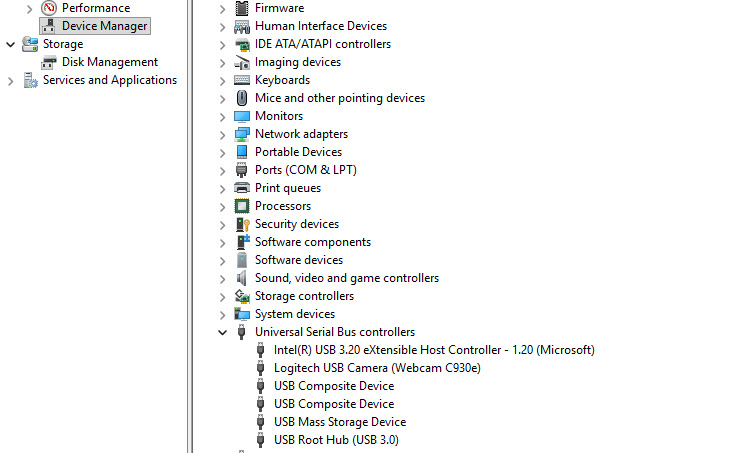
This is the sysadmin check most Trezor guides skip. Open Device Manager (right-click Start, then ‘Device Manager’) and plug the Trezor in while you watch the list.
- If the list refreshes and a new device appears, Windows sees the hardware and the problem is the software or the driver.
- If nothing changes at all, Windows does not see the device. That points back to the cable or the port.
- A device with a yellow warning mark means a driver problem. Jump to the Zadig fix below.
On laptops, USB power saving can cut power to the port. Expand ‘Universal Serial Bus controllers’, open each USB Root Hub entry, go to the Power Management tab and untick ‘Allow the computer to turn off this device to save power’. This needs admin rights.
If this is a company laptop, endpoint security tools and USB device control policies can block unknown USB devices. In that case the fix is with your IT team, not in Suite.
5) Turn Off VPN, Firewall, Antivirus and Browser Extensions
Trezor lists these as possible blockers: VPN clients, advanced firewall or antivirus settings, and browser extensions such as ad blockers. Turn them off one at a time, test, and turn them back on afterwards. Do not leave your antivirus off.
If you use a VPN all day, read my take on whether you need a VPN for daily use on Windows PCs. With the web app, extensions are the usual suspect. Keep only the ones you really need (my list of security extensions for Chrome is a good starting point) and disable the rest while testing.
6) Install the libusb Driver with Zadig
If Device Manager shows the Trezor with a driver problem, or Suite still does not see it, the Windows USB driver is the next suspect. Trezor’s own troubleshooting page uses Zadig for this.
Zadig is a free, signed tool from Akeo Consulting that installs generic USB drivers. Download it only from the official Zadig site (current version 2.9). It runs without installation and asks for admin rights.
First, put the Trezor in bootloader mode. Connect the USB cable while doing this:
- Trezor Safe 5: swipe your finger from bottom to top on the touchscreen.
- Trezor Safe 3: hold the left button.
- Trezor Model T: swipe your finger across the touchscreen.
- Trezor Model One: hold the left button.
The bootloader screen shows an install firmware option. Do not press it for this fix. You only need the device in bootloader mode.
Then:
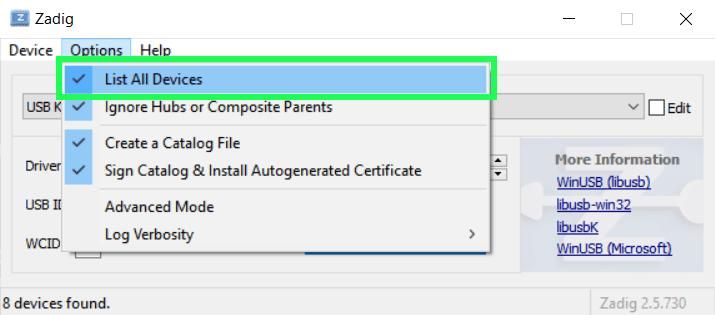
- Run Zadig.
- Go to Options > List all devices.
- From the drop-down, select the Trezor. It usually shows as ‘Unknown Device #1’ or similar.
- In the driver box, choose libusb0 (v1.2.6.0).
- Click Install Driver (or Replace Driver if a driver is already there).
- Restart the computer.
- Unplug the Trezor, open Trezor Suite, then plug it back in normally.
Make sure you select the right device in Zadig. Replacing the driver of your mouse or a USB disk by mistake will stop that device from working until you roll the driver back in Device Manager.
7) Old Model One Firmware (1.7.0 or Older)
If you have an old Trezor Model One that has not been updated for years, current Suite will not find it at all. Model One firmware 1.7.0 and older used the HID transport, which Suite no longer supports.
Trezor’s workaround: install Trezor Suite 25.1.2, which still supports HID, update the firmware from Settings > Device > Firmware, then update Suite from Settings > Application. Have your recovery seed at hand before any firmware update.
Using the Suite Web App Instead?
The Suite web app at suite.trezor.io/web uses WebUSB, so it works only in Chromium-based browsers: Chrome, Edge, Brave and Opera. Firefox and Safari do not support WebUSB, so the web app will never see your Trezor there.
When you connect, the browser shows a permission prompt to access the device. Allow it, or the web app stays on the connect screen. The web app works over USB only. Trezor itself recommends the desktop app on Windows, and I agree: fewer moving parts.
Watch Out for Fake Trezor Help Pages
This part matters more than any driver fix. Search results for Trezor connection problems are full of fake help pages hosted on Google Sites, Teachable, wasmer.app and similar free website builders. Some copy Trezor’s design, some even warn you about phishing to look trustworthy.
Recently, a fake Trezor page on Google Sites showed up in Google’s sponsored results and asked visitors for their 12 or 24-word recovery phrase. At least one person lost their savings to it, as reported here.
No real fix for a connection problem ever needs your recovery phrase. Not Trezor support, not a “Bridge installer”, not a web page. Only download Suite from trezor.io, and check that the web app address reads exactly suite.trezor.io. I wrote more about how these attacks work in phishing and AI-driven social engineering.
Why Trezor Suite Stops Seeing the Device
In most cases it comes down to one of these:
- A charge-only or worn cable, or a hub/dock in between.
- The old standalone Trezor Bridge fighting with the bridge built into current Suite.
- Another app or browser tab holding the device.
- A missing or wrong USB driver on Windows (fixed by Zadig).
- Very old Model One firmware that still uses HID.
The Bridge change is the newest of these. Anyone who set up a Trezor a few years ago probably installed Bridge back then, and it is still sitting in Program Files today.
FAQ
Do I still need Trezor Bridge on Windows?
No. The standalone Trezor Bridge is deprecated and Trezor recommends uninstalling it. The bridge function is now built into the Trezor Suite desktop app, so keep Suite installed and open instead.
Why does Trezor Suite say “Device detected in incorrect state”?
Suite cannot talk to the device normally, for example when it was connected with a button pressed or another app is using it. Unplug it, close other wallet apps, reconnect without touching any button and make sure Suite is up to date. If it keeps happening, try another cable and update the firmware.
Does Trezor Suite work in Firefox?
No. The Suite web app needs WebUSB, which Firefox and Safari do not support. Use Chrome, Edge, Brave or Opera, or better, the Trezor Suite desktop app.
Is Zadig safe to use?
Zadig is a well-known free tool signed by Akeo Consulting, and Trezor’s own support page uses it. Download it only from zadig.akeo.ie and be careful to pick the Trezor in the device list, not another USB device.
