


Windows 11 24H2 end of support for the Home and Pro editions lands on 13 October 2026. After that date these PCs stop getting security and quality updates. They keep working, but they are no longer protected against new problems. The fix is one small update and one restart.
This applies to Home, Pro, Pro for Workstations and Pro Education. Enterprise and Education editions of 24H2 are supported until 12 October 2027, so they are not in this rush. In this guide, I’ll show how to check your version, which version to land on (25H2 or 26H2), and what to do when Windows Update does not offer it.
Windows 11 version 24H2 Home and Pro stop getting security and quality updates on 13 October 2026. Run winver to check your version. If you are on 24H2, go to Settings > Windows Update and install 26H2 (supported to October 2028) or 25H2. On 24H2 both arrive as a small enablement package with one restart.
Check Which Windows 11 Version You Have
The quickest way is the built-in winver command. Press Win + R, type winver and press Enter. The window shows the version (24H2, 25H2 or 26H2) and the OS build.
You can also open Settings > System > About and look under ‘Windows specifications’. That screen shows the edition as well, so you can confirm it is Home or Pro. Microsoft’s own page on which version of Windows you are running uses the same path.
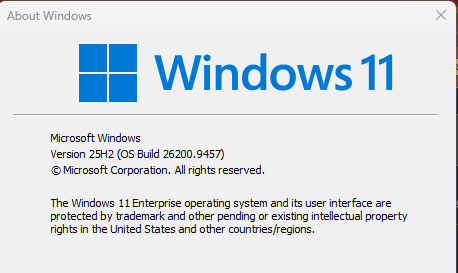
Here is how the versions line up, taken from Microsoft’s Windows 11 release information page.
| Version | OS build | Home and Pro updates end |
|---|---|---|
| 24H2 | 26100 | 13 October 2026 |
| 25H2 | 26200 | 12 October 2027 |
| 26H2 | 26300 | 10 October 2028 |
What Changes After Windows 11 24H2 End of Support
Microsoft’s own term is “end of updates” (end of servicing). “End of life” and “end of support” are the words people search for, and they mean the same thing here.
Per Microsoft’s 24H2 release health page, after 13 October 2026 these editions no longer get monthly security and preview updates, fixes for known issues, time zone updates or technical support. The PC still boots, your apps still run and your files are fine. Any bug that is open on 24H2 on that date stays open.
That is the real cost of staying. New security fixes keep shipping every month for 25H2 and 26H2, and a 24H2 PC just does not receive them.
If you are on Windows 10, this is a separate deadline. The Windows 10 side is covered in the Windows 10 ESU post.
The Automatic Upgrade Microsoft Is Pushing
Microsoft says Home and Pro PCs on 24H2 that are not managed by an IT department will get the 25H2 update automatically. You can choose the restart time or postpone it. Press reports put the start of this rollout in early April 2026, and pausing only delays it: when the pause ends, the update installs.
So if you do nothing, you will most likely end up on 25H2 before or soon after the deadline. That is fine. It is the same small update, and 26H2 can follow later. Microsoft’s banner names 25H2 as the target at the time of writing, so check the release health page if you read this later.
PCs managed by an admin (WSUS, Intune, Windows Update for Business policies) follow the admin’s settings instead. If your PC was once managed by a company and never gets any offer, leftover policies could be the reason. See how to disable WSUS by registry on managed computers.
25H2 or 26H2: Which One to Move To
My advice: if Windows Update offers 26H2, take it.
Both arrive on 24H2 as a small enablement package, with the same core files and the same monthly update. The difference is the support clock. 26H2 Home and Pro are supported to 10 October 2028, while 25H2 stops on 12 October 2027. Microsoft says installing 26H2 gives you the full 24 months for Home and Pro.
If the automatic upgrade lands you on 25H2 first, you did nothing wrong. The same package applies to 25H2, so you can move to 26H2 later with one more restart.
26H1 is not an option here. It is for new devices that shipped in early 2026, and Microsoft does not offer it as an in-place update from 24H2 or 25H2.
Enablement Package vs Full Upgrade in Plain Words
24H2, 25H2 and 26H2 share the same code. The 26H2 features were already delivered to your PC through monthly updates, switched off. The enablement package (KB5121794) is the switch. Press reports put it at around 174 KB, which is why it installs fast, with one restart.
A full upgrade is different. Installation Assistant or the ISO downloads a complete copy of Windows and reinstalls over the old one. It takes longer and needs about 9 GB of free space. Older posts that call the 24H2 to 25H2 move “a full reinstall” are wrong for the Windows Update route.
How to Upgrade from 24H2
1) Through Settings (Recommended)
You need the 22 September 2026 preview update KB5124010, or any later cumulative update, installed first. Installing whatever Windows Update offers first takes care of that.
- Open Settings > Windows Update.
- Turn on Get the latest updates as soon as they’re available.
- Click Check for updates.
- When your PC is eligible, you will see the option to download and install Windows 11 version 26H2 (or 25H2, if that is what is offered). Click Download & install.
- Restart when asked. Run
winveragain and check that it shows 26H2 and build 26300.
Microsoft rolls 26H2 out in controlled stages, so the option may not appear on day one for every PC.
2) Installation Assistant (When Windows Update Does Not Offer It)
Microsoft’s Windows 11 download page now offers 26H2 through the Installation Assistant. It needs a Windows 10 (version 2004 or later) or Windows 11 licence, 9 GB of free disk space and an x64 PC (no Arm), and you run it as administrator.
This is a full in-place upgrade, so it takes much longer than the Settings route. Also, if a safeguard hold is the reason Windows Update does not offer the upgrade, forcing it this way can bring the known issue along with it. Check the next section first.
3) The KB5121794 Package for the Family IT Person
If you look after several home PCs, KB5121794 can also be installed from the Microsoft Update Catalog. It applies to 24H2 and 25H2 and needs the same KB5124010 (or later) prerequisite. For one PC, use Settings instead.
Why the Update Is Not Showing
- A safeguard hold. Microsoft blocks the upgrade on PCs with a known compatibility problem. Windows Update shows a message with a ‘Learn more’ link, and the hold lifts on its own once the issue is fixed. Microsoft explains how to check safeguard holds on your device.
- The prerequisite update is missing. Install pending updates, restart, and check again.
- The rollout has not reached your PC yet. 26H2 is staged.
- The PC is managed by policy from a company or school.
- The hardware or edition is at its limit. 24H2 was the last supported version for Windows 11 SE, and 26H2 is the last version for devices with Snapdragon 850 processors.
Before forcing anything, read the open issues on the 24H2 release health page. Right now it lists a crash in some older apps that need AC-3 (Dolby Digital) audio decoding, and it applies to 24H2, 25H2 and 26H2 alike.
Before You Click Install
- Back up your files first. A full image to an external drive is easy, see how to take a full backup of Windows 11 to an external hard drive.
- Keep at least 9 GB free if you plan to use Installation Assistant.
- Plug in laptops, and save your work. The restart happens during the install.
- If something breaks after the upgrade, repairing Windows with DISM is the first thing to try.
FAQ
Will my PC stop working after 13 October?
No. It keeps running exactly as before. It just stops receiving security and quality updates on 24H2 Home and Pro.
Does Windows 11 24H2 upgrade automatically to 25H2?
Yes, for unmanaged Home and Pro PCs, according to Microsoft’s current wording. You choose the restart time, and pausing only delays it. Check the release health page, because Microsoft could change the target to 26H2.
Should I skip 25H2 and go straight to 26H2?
Yes, if Windows Update or Installation Assistant offers it. From 24H2 it is the same small enablement package, and you get about a year more support.
I use Windows 11 Enterprise or Education. Does this apply to me?
No. 24H2 on Enterprise and Education is supported until 12 October 2027.
