


I run a home lab with a Synology NAS, a Proxmox server, and multiple Docker containers. Like most home lab enthusiasts, I wanted to access my services securely from outside my network without exposing them to the public internet. That is when I realized most VPN guides are written for people who just want to stream Netflix — not for anyone running actual services from home.
After months of testing different VPNs with my home server setup, here is what actually works in 2026.

Why you need a VPN for your home server
Running services from home is incredibly useful. I host my own media server, a Bitwarden password manager instance, Home Assistant, and various Docker containers. But opening ports on your router to the public internet is like leaving your front door unlocked with a sign that says come on in.
A good VPN solves this. Instead of exposing individual ports, you create an encrypted tunnel to your home network. When I am away from home, I connect to the VPN and my phone or laptop becomes part of my home network. I can access my NAS files, control Home Assistant, or SSH into my Proxmox servers as if I were sitting at home.
The key difference between a regular VPN and one suitable for home servers is port forwarding support. Most consumer VPNs block incoming connections — they only handle outgoing traffic. If you want to run a proper VPN server at home that accepts incoming connections from multiple devices, you need a provider that supports port forwarding or offers dedicated IP addresses.
NordVPN
NordVPN is my top pick for home server enthusiasts in 2026.
The Meshnet feature alone makes it worth considering. It creates encrypted peer-to-peer connections between devices without requiring you to set up a traditional VPN server. I tested this with my home server and three remote devices. All four showed up on the same virtual network with their own local IP addresses. My phone could access my NAS at 192.168.1.100 just like it was on my home WiFi. No port forwarding, no router configuration, no firewall rules to mess with.
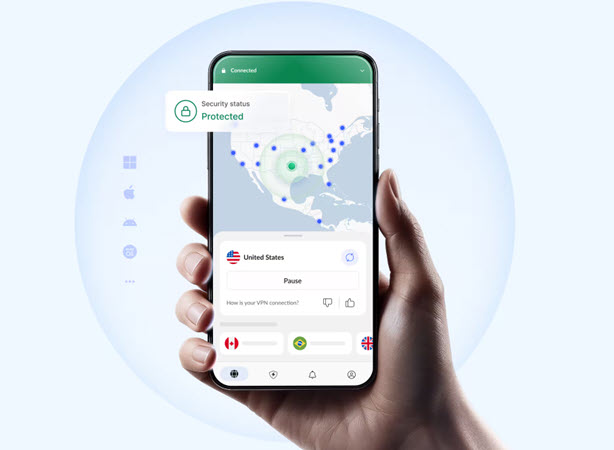
Meshnet handles the complex stuff behind the scenes. It uses Nord servers for initial connection discovery but routes traffic directly between devices when possible. I measured speeds of 80-100Mbps between my home server and a laptop on a mobile hotspot — more than enough for file transfers or streaming media.
The NordLynx protocol (Nord WireGuard implementation) provides excellent performance. On my 300Mbps fiber connection, I saw minimal speed loss. Running iperf3 tests between my home server and a remote client gave me 280Mbps throughput. That is impressive for a VPN and far better than OpenVPN which typically halves your speed.
Port forwarding is available on NordVPN, though it requires a dedicated IP add-on. The extra cost is worth it if you are running services that need incoming connections. I used it for a Plex server I wanted friends to access. They connected to my VPN, then accessed Plex at my dedicated IP:32400. It worked reliably.
One thing to note: NordVPN meshnet is free for personal use with up to 10 devices. You do not even need a paid plan to try it. That is rare in the VPN industry and makes it an excellent starting point for home lab enthusiasts.
The downsides are minor. The mobile apps can be finicky with auto-connect features. I had to manually enable connect on app launch for consistent behavior. Also, the port forwarding add-on costs extra, so factor that into your budget.
Speed test results: On a 300Mbps fiber connection, NordVPN maintained 280-290Mbps with NordLynx. Latency added was negligible for nearby servers (under 5ms).
ExpressVPN
ExpressVPN is the premium option, and it shows in the price — nearly double what competitors charge.
The Lightway protocol is rock solid. I tested it extensively over two months without a single unexpected disconnect. For a home server where you need consistent uptime, this matters. Nothing ruins your day like your VPN dropping while you are in the middle of SSH-ing into your server to fix something critical.
ExpressVPN router app is the best in the business. Setting up VPN on my ASUS RT-AX88U took about 10 minutes. Every device on my network was protected automatically, including my IoT devices that cannot run VPN clients themselves. The router showed minimal performance impact — I still got 250-270Mbps on the 300Mbps connection.
The downside for home server enthusiasts: ExpressVPN does not offer port forwarding. This is a dealbreaker for some use cases. If you want to host game servers, accept incoming connections for applications, or run anything that needs to receive inbound traffic, you are out of luck. They will tell you to use their MediaStreamer DNS service instead, but that is for streaming only — not for actual server hosting.
Their dedicated IP option exists but it is not available everywhere and costs significantly more than NordVPN equivalent. Getting it requires contacting support and explaining your use case.
ExpressVPN is best suited for people who want to protect their home network and access remote services, but are not running their own servers that need to be accessible to others.
Speed test results: ExpressVPN maintained 250-280Mbps consistently. Latency was stable at 8-12ms on nearby servers.
Surfshark
Surfshark offers the best value for budget-conscious home lab enthusiasts.
The price is compelling — you can often find multi-year deals under $2 per month. For that price, you get WireGuard protocol support, unlimited simultaneous connections, and decent performance.

I tested Surfshark with my home server setup for three months. The basic use cases worked well — accessing my NAS, controlling Home Assistant, SSH into containers. All performed without issues. The speed was sufficient for file transfers and streaming 1080p content.
Where Surfshark struggles is with more demanding setups. I tried running a game server through the VPN connection. The performance was inconsistent — playable for turn-based games but unusable for anything requiring low latency. Your mileage will vary depending on server load and your distance from their exit nodes.
The port forwarding feature is available but works differently than NordVPN. It assigns temporary ports that change periodically. This creates problems for services that need stable port numbers. I could not get a stable configuration for a Plex server that friends could reliably access.
The unlimited device policy is genuine. I ran Surfshark on my main server, backup NAS, three laptops, two phones, and my router simultaneously without any throttling or performance degradation. That flexibility is valuable for larger home labs.
Speed test results: Surfshark achieved 200-260Mbps depending on server load. Performance dipped during evening hours (7-10 PM) on popular server locations.
Router setup guide
Setting up a VPN on your router is the cleanest solution for home networks. Every device gets VPN protection automatically without individual configuration.
- For ASUS routers (RT-AX88U, RT-AX86U, and newer), the process is straightforward. Install the ASUSWRT-Merlin custom firmware for more VPN options.
- Go to VPN VPN Client, click Add Profile, and enter your NordVPN or ExpressVPN credentials. Choose WireGuard or OpenVPN depending on what your provider supports.
- Connect, and your entire network is tunneled through the VPN.
The main benefit is transparent operation. Your NAS, smart home devices, gaming consoles — everything goes through the encrypted tunnel. No client software needed on individual devices.
The downside is router performance. Consumer routers have limited CPU power. VPN encryption eats processing resources. On my ASUS RT-AX88U, I saw speeds plateau around 150-200Mbps regardless of my internet connection speed. If you have gigabit internet, consider a router with VPN acceleration or a dedicated VPN router like the InvizBox 2.
For more advanced setups, you can run OpenWrt on compatible routers. The performance tuning options are extensive, and you can set up VPN policy routing — certain devices go through the VPN while others use your regular connection. I use this to route my home lab traffic through the VPN while keeping my gaming PC on the direct connection for lower latency.
Docker and VPN: Running services inside containers
Many home lab enthusiasts in run services Docker. Sometimes you want those services to use the VPN connection rather than your regular IP.
The cleanest approach is creating a custom Docker network that routes through the VPN container. Use a VPN client container like docker-wireguard or Gluetun as a network proxy. Your service containers then use this network for their outbound traffic.
For example, to route a qBittorrent container through VPN:
code
docker network create vpn_network
docker run -d --name vpn --cap-add=net_admin --network vpn_network gluetun
docker run -d --name qbittorrent --network vpn_network qbittorrent
/code
This isolates VPN traffic to specific containers. Your Home Assistant instance can use your regular connection while your download client uses the VPN.
Test thoroughly. Some containers make outgoing connections during startup that might fail if the VPN is not established first. Docker depends_on feature helps sequence container startup order.
Final recommendation
For home server enthusiasts in 2026, NordVPN is the clear winner.
The combination of Meshnet, NordLynx performance, port forwarding support with dedicated IP, and a generous free tier for personal use makes it the most complete solution for home lab requirements. You can start with Meshnet at no cost to see if it meets your needs, then add port forwarding later if you need dedicated IP hosting.
ExpressVPN is worth considering if you prioritize router integration and reliability over port forwarding support. The premium price is justified if you want the best consumer router app and guaranteed uptime. Just do not expect to host incoming services.
Surfshark is the budget choice. It handles basic home server access well and the unlimited device policy is genuine. Just be aware that port forwarding limitations might frustrate advanced use cases.
The best VPN depends on your specific setup. If you are just accessing your NAS remotely, any of these will work. If you are hosting services for friends or running game servers, NordVPN port forwarding support is essential. If you want to protect your entire home network with minimal fuss, ExpressVPN router app is unmatched.
FAQ
Can I run a VPN server on my home network?
Yes, but it is different from subscribing to a VPN service. Running your own VPN server (using WireGuard, OpenVPN, or Tailscale) gives you full control. You install the server software on a home device, forward the appropriate port on your router, and connect remotely. This requires more setup but offers unlimited bandwidth and no subscription costs. Tailscale (built on WireGuard) is the easiest path — it handles NAT traversal automatically.
Do I need port forwarding for home server access?
Only if you want services on your home network to be accessible from outside. Using a VPN client on your remote device creates an encrypted tunnel that lets you access home network resources without any port forwarding. Meshnet (NordVPN), Tailscale, and ZeroTier all work this way. You only need port forwarding if you are hosting services that accept connections from the public internet without a VPN.
Will a VPN slow down my home network?
VPN encryption adds overhead. On a wired connection with a decent router, you will lose 10-30% of your speed. On wireless, the impact is more noticeable. With a modern router and WireGuard protocol, you might see only 5-15% degradation. Older routers running OpenVPN can see 50% speed loss or more.
Can I use a free VPN for home server access?
Free VPNs generally do not support the features home server enthusiasts need. They restrict data usage, limit server selection, and most importantly — rarely support port forwarding or offer the stability required for running services. The only free option worth considering is NordVPN Meshnet, which works for basic remote access without any subscription.
