


If the Windows Update troubleshooter is missing, will not open or runs and fixes nothing, you are not alone. Microsoft has been moving its old troubleshooters to the Get Help app, so the screen you remember may not be there on your Windows 11 PC.
In Windows 11, open Settings > System > Troubleshoot > Other troubleshooters, then click Run next to Windows Update. If it redirects you, open the Get Help app and run it there. If it still fixes nothing, repair the image with DISM and SFC, then reset the Windows Update components.
In this guide, I’ll show where it lives now, why it behaves differently, and what to do when it finds nothing.
Where Is the Windows Update Troubleshooter in Windows 11?
It is in Settings, under the other troubleshooters. These are the steps from Microsoft’s own page:
- Open Start > Settings > System > Troubleshoot > Other troubleshooters.
- Under Most frequent, click Run next to Windows Update.
- Restart the PC when it finishes.
- Open Settings > Windows Update and click Check for updates.
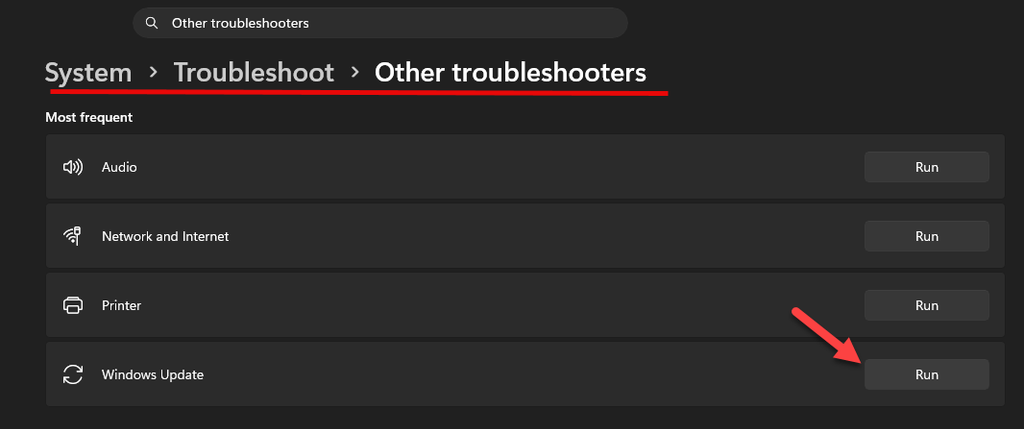
Microsoft’s page for this tool now starts with the Get Help app. You can type “Get Help” in the Start menu search, open the app and ask it to run the Windows Update fix. The Settings route is the second option on that page.
On Windows 10 the path is Settings > Update & Security > Troubleshoot > Additional troubleshooters > Windows Update > Run the troubleshooter. Keep in mind that Windows 10 support ended on October 14, 2025.
Why the Troubleshooter Is Missing or Not Opening
Most of the old troubleshooters were built on the Microsoft Support Diagnostic Tool (MSDT). Microsoft deprecated MSDT in January 2023 and said it will be removed in a future Windows release.
Microsoft’s own timeline for the troubleshooters is:
- 2023: some troubleshooters start redirecting to Get Help. Windows Update is on that list.
- 2024: the redirection ends and the remaining ones are removed.
- 2025: the MSDT platform itself is removed.
The Microsoft page I found does not say which Windows 11 build loses the old version, and it still shows “link coming soon” for the Windows Update redirect. So what you see depends on your build. You may get the old window, a message that the troubleshooter is being retired, or a jump to Get Help.
A few things to check if it will not open at all:
- There is no separate download. Microsoft’s page for Windows 11 points to Get Help and Settings, not to a standalone file. Be careful with sites that offer a “Windows Update troubleshooter download”.
- Work or school PCs. If your PC is managed, your admin may have blocked it.
- Get Help is missing or broken. Update it from the Microsoft Store. Some community guides also suggest resetting it under Settings > System > System components, but that tip does not come from Microsoft.
What to Do When the Troubleshooter Fixes Nothing
Microsoft says the troubleshooter analyzes the problem and resets any update components that need it. When it says “problem not found” and updates still fail, go through these in order. I put the least invasive first.
1) Read the real error
The error code in Update history tells you more than the troubleshooter does. Go to Settings > Windows Update > Update history, and note the code.
For more detail, run this in an administrator PowerShell window. It merges the update trace files into one readable WindowsUpdate.log, as documented by Microsoft.
Get-WindowsUpdateLogFor failures during install, the servicing log is at %systemroot%\Logs\CBS.
2) Check the Windows Update services
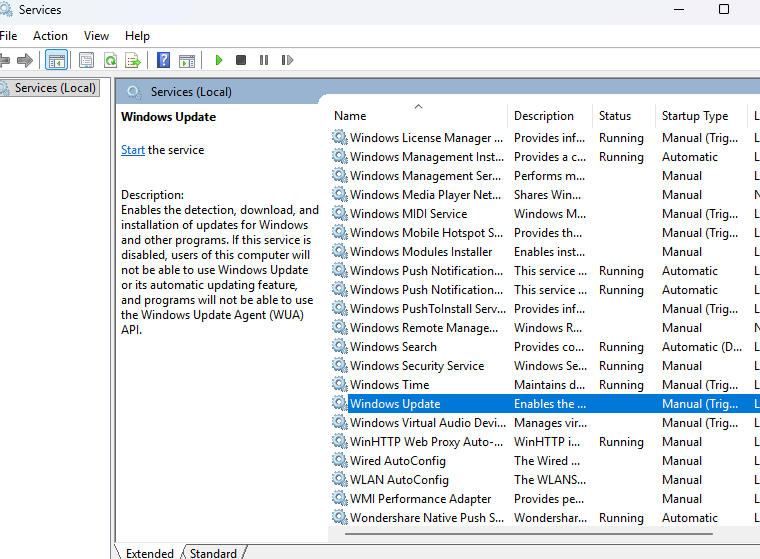
Press Windows + R, type services.msc and make sure these two are not stopped:
- Windows Update
- Update State Orchestrator
Microsoft lists this as the fix when the Settings page is frozen on “scanning”.
3) Repair the Windows image with DISM and SFC
Damaged system files are a common reason updates fail, and the troubleshooter does not repair them. Open the command prompt as administrator and run these one by one. If you want more detail on the switches, read the DISM command guide.
Dism /Online /Cleanup-Image /ScanHealth
Dism /Online /Cleanup-Image /CheckHealth
Dism /Online /Cleanup-Image /RestoreHealth
sfc /scannow
Microsoft says DISM gives the more extensive check and can repair issues with the component store, and sfc /scannow is the quick check. Restart the PC and check for updates again.
4) Reset the Windows Update components
This is the reset the troubleshooter is supposed to do for you, done by hand. Microsoft documents it for when nothing else works. Run these in an elevated command prompt. Renaming the folders keeps a backup, so you can go back if something looks wrong.
net stop bits
net stop wuauserv
net stop cryptsvc
Ren %Systemroot%\SoftwareDistribution\DataStore DataStore.bak
Ren %Systemroot%\SoftwareDistribution\Download Download.bak
Ren %Systemroot%\System32\catroot2 catroot2.bak
net start bits
net start wuauserv
net start cryptsvc
Microsoft’s longer manual reset also has a step that resets the service security settings with sc.exe. Skip it unless everything else has failed, as Microsoft says it overwrites the existing permissions on those services.
5) Use “Fix problems using Windows Update”
Windows 11 can reinstall the same version of Windows on top of itself and keep your apps, files and settings. Go to Settings > System > Recovery and click Reinstall now next to Fix problems using Windows Update.
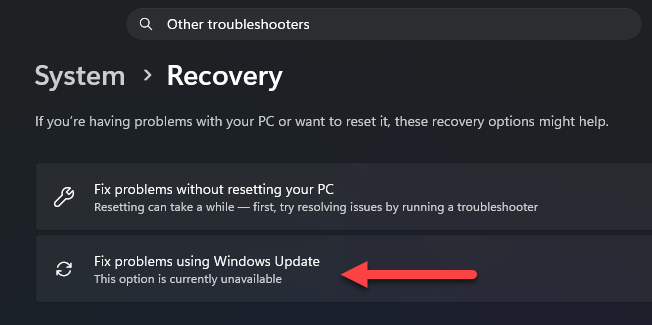
According to Microsoft, it needs the February 2024 optional update or later, and it may be missing on a PC managed by your work or school.
6) On a work PC, check the proxy and the update source
If the PC sits behind a proxy, Windows Update needs the proxy set at the system level (WinHTTP). A proxy set only in the browser is not enough. Microsoft’s fix is to import the settings:
netsh winhttp import proxy source=ieAlso check whether the PC takes updates from a WSUS server instead of Microsoft. A server that has not approved the updates makes the PC scan and find nothing. For your own PC that was once on a company network, see how to disable WSUS by registry.
If the update stops at a percentage instead of failing with an error, my Windows Update stuck at 0% fix covers that case on Windows Server.
FAQ
How do I run the Windows Update troubleshooter in Windows 11?
Go to Settings > System > Troubleshoot > Other troubleshooters and click Run next to Windows Update. You can also open the Get Help app and run it from there.
Why is the troubleshooter not working?
Microsoft is retiring the MSDT platform that the old troubleshooters ran on, and Windows Update is on the list of troubleshooters redirected to Get Help. So it may open Get Help, show a retirement message or fail on some builds. Use the steps above instead of the troubleshooter.
Is there a download for Windows 11?
Not from Microsoft’s current page for Windows 11. It points to the Get Help app and the Settings route. Avoid third-party download sites for this.
What is fixing problems using Windows Update?
It is the “Fix problems using Windows Update” repair option under Settings > System > Recovery that reinstalls the current version of Windows and keeps your apps, files and settings. It is useful when updates keep failing and DISM does not help.
