


Windows 2022 is an upcoming server OS from Microsoft with new features and plenty of security enhancements. As Microsoft is pushing harder on security by utilizing hardware chips in Windows 11, the same technique continues in Windows 2022 servers also.
The next question that comes to our mind is installing and testing this new OS on our normal PCs. Thanks to virtualization technology. We can do that with the Windows built-in Hyper-V feature or VMware and VirtualBox. In this guide, let me show you where to download the Windows 2022 server ISO/VHDX file and install it on VirtualBox using your normal Windows 10 or 11 computer.
Some key security improvements include secure-Core servers, TPM 2.0, Virtualization-based security, and firmware protection. Also, Microsoft implements HTTPS, and TLS 1.3 enabled connectivity by default. Improvements in DNS resolution also can be seen in this new OS which can prevent DNS hacks and poisoning.
Other considerable enhancements in monitoring Azure, on-premise and hybrid environments, networking, and Hyper-V improvements are available in the new server OS. To find out more new features, do check the official feature list.
Also, note that when we install Windows 2022 on VirtualBox (or any virtualization environment), we can’t check the all-new features. Some of these features will only work when we install the server OS on the physical hardware.
Install Windows 2022 Server on VirtualBox
1) Download the Windows 2022 server from the official site here. You may need to provide your details to download the file.

2) Download and install the latest Oracle VirtualBox software (if you don’t have it already on your host computer).
3) Make sure you have enough hardware resources to allocate. Minimum 2GB RAM, recommended is more than 4GB.
4) Create a new VM from the VirtualBox console. It is okay to select the Windows 2019 (64bit) server as the OS version since Server 2022 is not officially supported by VirtualBox (as of now)

5) Set the RAM size based on your physical computer RAM availability. I configured 8GB in this example.
6) Create a new virtual hard disk, VDI type, 50GB size (or more) and select a dynamically allocated type to save disk space.
7) Click next to create the virtual machine.
8) Go to the settings of the newly created virtual machine and edit the processor settings. Increase the processor cores to 2 or more. By default, it will create the VM with a single-core, which may not be enough to install the desktop experience version of the Windows 2022 server.

You can check the hardware requirements for the Windows 2022 server here at the official site.
9) Open the Storage option and mount the downloaded 2022 ISO file to CD/DVD drive as shown below.

10) Power the virtual machine and select the mounted ISO file to boot the VM.
11) It is a normal Windows OS server installation process; nothing changed in this version. Select the Desktop Experience if you want to get the normal desktop and GUI interface. If you don’t select this option, you will get the Windows 2022 Server Core on the VirtualBox.

If you want to get experience on server core, you can install without Desktop Experience. You can always upgrade the server core to a Desktop experience or vice versa later.
In this example, I selected the desktop version.
12) Select the new Install option to do the fresh installation.

13) Select the hard disk you want to install and click Next. The installation process will create the required partitions and process to the next step.
14) After the installation is completed and VM is rebooted, you need to set up the Administrator password.
15) Here you go; you will land on the latest Windows 2022 server OS on VirtualBox as a virtual machine. It doesn’t matter which OS you have on your computer; it can be Windows 10, 11 or even the seven, Linux or macOS. As long as you have enough hardware resources on your physical computer with the latest VirtualBox, you can have Windows 2022 server as VM showed in these steps.

Read Also: Best Home Server OS you must know
What about VirtualBox Guest Additions for Windows 2022 Server?
As we mentioned earlier, Oracle VirtualBox doesn’t support Windows 2022 since this server version is still in preview mode (as of mid-July 2021). So, we do not have proper tested VirtualBox guest additions for server 2022.
But, we can try the available guest additions for Windows OS (Server 2019). Before proceeding to the next steps, I highly recommend taking a snapshot of the virtual machine.

16) Click on Devices, and Insert Guest additions CD image of the virtual machine.

17) Once it is mounted successfully inside the VM, open the CD drive and execute the Windows version of guest additions.
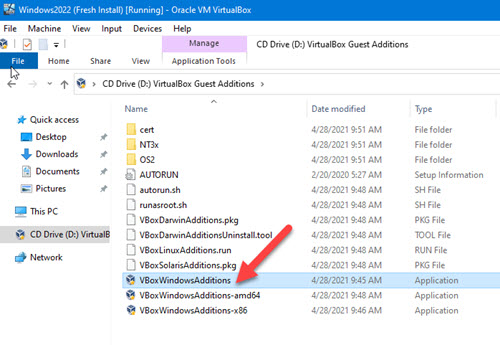
18) Select Install for required drivers and continue the installation. You need to reboot the VM at the end.
19) This Windows 2022 server VM should perform well with proper working display, mouse movements, full-screen mode, and other additional VirtualBox guess addition features.

20) Take another snapshot before playing around with the new OS. Also, a full Windows update is highly recommended to get the latest updates and improvements.
Download Windows 2022 Server VHDX for VirtualBox or Hyper-V
Usually, Microsoft provides the preview and final versions of server Operating Systems in VHDX format, which natively supports Hyper-V. These pre-installed VHDX files can be easily imported to Hyper-V or VirtualBox to use the OS instantly.
You can download the Windows 2022 Server VHDX file from the Microsoft site here.

Unfortunately, at the moment, the preview builds are temporary on hold, and you can’t download them from the Microsoft site. When these images are available, you can download the VHDX file and simply import it to Oracle VirtualBox as described in our earlier guide on Windows 2012 R2 Server.
