Close Menu
    What's Hot

    Migrating off HP-UX: Why the Global Crisis Makes Emulation Your Best Bet Right Now  

    April 15, 2026

    GTA 5 Troubleshooting Guide: Common Windows Errors and Solutions 

    April 14, 2026

    The Hidden SEO Risks of Data Breaches: How They Damage Rankings and How to Recover

    March 23, 2026
    Facebook X (Twitter) YouTube LinkedIn
    Facebook X (Twitter) YouTube LinkedIn
    SysprobsSysprobs
    • Tech Guides
      • Windows
        • Windows 11
        • Windows 10
        • Windows Servers
      • Virtualization
        • VirtualBox
        • VMware
        • Hyper-V
        • Server Virtualization
        • VirtualBox Images
      • PC
        • Linux
        • macOS
        • Hackintosh
        • MS Office
      • Pro IT Tips
        • Internet
        • MS Exchange
        • Fintech
    • Reviews
      • Gadgets
        • Android
        • iPhone
    • Security & Privacy
      • IT Security
    • Trading Gear
      • Laptops
    SysprobsSysprobs
    Home»Featured»GTA 5 Troubleshooting Guide: Common Windows Errors and Solutions 

    GTA 5 Troubleshooting Guide: Common Windows Errors and Solutions 

    DineshBy Dinesh
    Share
    Facebook Twitter LinkedIn Pinterest Email

    Grand Theft Auto V remains one of the most popular PC games, but Windows users frequently encounter technical issues ranging from launch failures to performance problems. This comprehensive troubleshooting guide addresses the most common GTA 5 errors on Windows 11 and Windows 10, providing step-by-step solutions to get you back into Los Santos. 

    Understanding GTA 5 System Requirements 

    Before troubleshooting, verify your system meets GTA 5’s requirements. The game requires at least an Intel Core i5 3470 or AMD X8 FX-8350, 8GB RAM, and an NVIDIA GTX 660 or AMD HD 7870 with 2GB VRAM. Windows 10 64-bit is the minimum supported operating system, though Windows 11 works equally well. 

    Many players choose to access GTA Online through established accounts to bypass initial progression. Options like gta account for sale provide immediate access to content, but regardless of account origin, proper Windows configuration remains essential for stable gameplay. 
    GTA5

    ERR_GFX_D3D_INIT Error 

    This graphics initialization error typically occurs when DirectX components are corrupted or outdated. The error prevents GTA 5 from launching and displays “ERR_GFX_D3D_INIT – Could not initialize Direct3D device.” 

    Solution Steps: 

    1. Download the latest DirectX End-User Runtime from Microsoft’s official website 
    2. Run the installer and complete the DirectX installation 
    3. Navigate to your GTA 5 installation folder (typically C:\Program Files\Rockstar Games\Grand Theft Auto V) 
    4. Right-click GTA5.exe and select Properties 
    5. Go to the Compatibility tab 
    6. Check “Run this program as an administrator” 
    7. Click Apply and OK 

                Additionally, update your graphics drivers through Device Manager or by downloading the latest drivers directly from NVIDIA or AMD’s official websites. Outdated GPU drivers cause numerous graphics initialization problems. 

                Game Won’t Launch or Crashes at Startup 

                Launch failures often stem from conflicting background applications, corrupted game files, or Windows permission issues. 

                Solution Steps: 

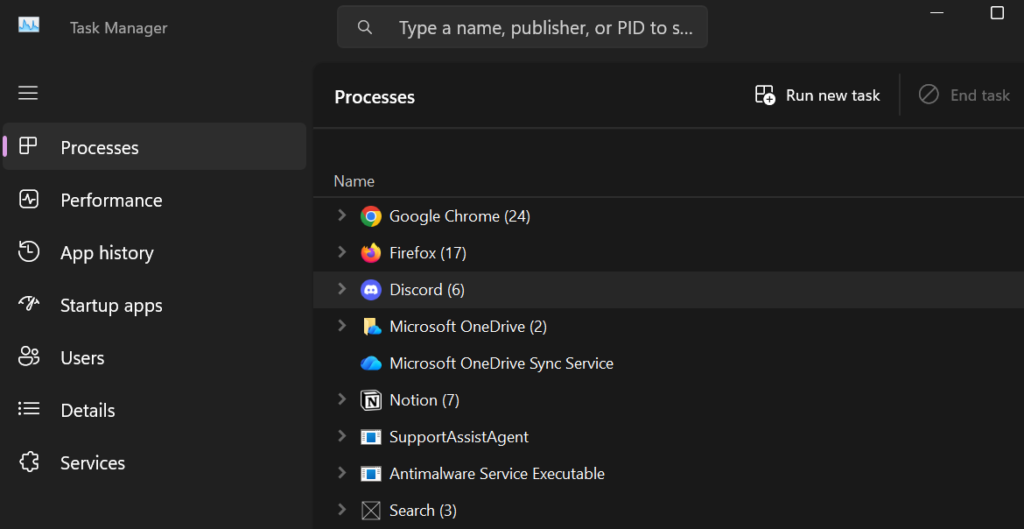
                1. Open Task Manager (Ctrl + Shift + Esc) 
                2. End all Rockstar Games Launcher processes 
                3. Navigate to C:\Users[YourUsername]\Documents\Rockstar Games\GTA V 
                4. Delete or rename the “settings.xml” file (this resets graphics settings to default) 
                5. Verify game files through the Rockstar Games Launcher: 
                        • Open Rockstar Games Launcher 
                        • Select GTA V 
                        • Click Settings (gear icon) 
                        • Select “Verify Integrity” 
                        Task Manager

                        If the issue persists, disable Windows Defender or third-party antivirus temporarily, as security software sometimes blocks GTA 5 executables. Add GTA5.exe to your antivirus exclusions list for permanent resolution. 

                        Low FPS and Stuttering Issues 

                        Performance problems on Windows often result from incorrect graphics settings, background processes consuming resources, or power management configurations. 

                        Solution Steps: 

                        1. Windows Power Settings:[Text Wrapping Break] 
                        • Open Control Panel > Hardware and Sound > Power Options 
                        • Select “High Performance” power plan 
                        • Click “Change plan settings” > “Change advanced power settings” 
                        • Expand “Processor power management” 
                        • Set “Minimum processor state” to 100% 
                        1. NVIDIA Control Panel Settings (for NVIDIA users):[Text Wrapping Break] 
                        • Right-click desktop and select “NVIDIA Control Panel” 
                        • Navigate to “Manage 3D settings” 
                        • Select GTA5.exe under “Program Settings” 
                        • Set “Power management mode” to “Prefer maximum performance” 
                        • Set “Texture filtering – Quality” to “High performance” 
                        1. In-Game Graphics Optimization:[Text Wrapping Break] 
                        • Reduce MSAA from 8x to 2x or FXAA 
                        • Lower “Grass Quality” to High (Very High impacts performance significantly) 
                        • Reduce “Extended Distance Scaling” to minimum 
                        • Disable “Long Shadows” 
                        • Set “Population Density” and “Population Variety” to 50% 
                        1. Disable Windows Game DVR: [Text Wrapping Break] 
                        • Press Windows + I to open Settings 
                        • Navigate to Gaming > Captures 
                        • Toggle off “Record in the background while I’m playing a game” 

                        Social Club Login Problems 

                        Authentication errors preventing Social Club login disrupt GTA Online access. 

                        Solution Steps: 

                        1. Clear Social Club cache: 
                        • Press Windows + R 
                        • Type %localappdata% and press Enter 
                        • Navigate to Rockstar Games\Social Club 
                        • Delete all files in this folder 
                        1. Reset network settings: 
                        • Open Command Prompt as Administrator 
                        • Type: ipconfig /flushdns and press Enter 
                        • Type: netsh winsock reset and press Enter 
                        • Restart your computer 
                        1. Temporarily disable VPN or proxy connections 
                        1. Add firewall exceptions: 
                        • Open Windows Defender Firewall 
                        • Click “Allow an app through firewall” 
                        • Add GTA5.exe and Rockstar Games Launcher 

                        ERR_SYS_INSUFFICENT_MEM Error 

                        This memory error indicates insufficient system RAM or virtual memory allocation problems. 

                        Solution Steps: 

                        1. Close unnecessary background applications: 
                        • Open Task Manager 
                        • Sort processes by Memory usage 
                        • End tasks consuming excessive RAM 
                        1. Increase Windows virtual memory: 
                        • Press Windows + Pause/Break (or right-click This PC > Properties) 
                        • Click “Advanced system settings” 
                        • Under Performance, click “Settings” 
                        • Go to the Advanced tab 
                        • Click “Change” under Virtual memory 
                        • Uncheck “Automatically manage paging file size” 
                        • Select your system drive (C:) 
                        • Choose “Custom size” 
                        • Set Initial size to 1.5x your RAM (e.g., 12000 MB for 8GB RAM) 
                        • Set Maximum size to 3x your RAM (e.g., 24000 MB for 8GB RAM) 
                        • Click Set, then OK 
                        • Restart your computer 

                        Steam Integration Issues (for Steam users) 

                        Steam version players sometimes encounter overlay conflicts or synchronization problems. 

                        Solution Steps: 

                        1. Verify game files through Steam: 
                        • Right-click GTA V in Steam Library 
                        • Select Properties 
                        • Go to Installed Files tab 
                        • Click “Verify integrity of game files” 
                        1. Disable Steam Overlay: 
                        • Right-click GTA V in Steam Library 
                        • Select Properties 
                        • Uncheck “Enable Steam Overlay while in-game” 
                        1. Run Steam as Administrator: 
                        • Right-click Steam shortcut 
                        • Select Properties 
                        • Go to Compatibility tab 
                        • Check “Run this program as an administrator” 

                        Audio Issues and Missing Sound 

                        Sound problems typically result from incorrect audio device configuration or corrupted audio drivers. 

                        Solution Steps: 

                        1. Set correct default playback device: 
                        • Right-click speaker icon in system tray 
                        • Select “Sound settings” 
                        • Ensure correct output device is selected 
                        1. Update audio drivers: 
                        • Open Device Manager 
                        • Expand “Sound, video and game controllers” 
                        • Right-click your audio device 
                        • Select “Update driver” 
                        1. Disable audio enhancements: 
                        • Right-click speaker icon > Sound settings > More sound settings 
                        • Select your playback device > Properties 
                        • Go to Enhancements tab 
                        • Check “Disable all enhancements” 

                        Graphics Settings Reset After Each Launch 

                        This persistent issue stems from incorrect file permissions on the settings.xml file. 

                        Solution Steps: 

                        1. Navigate to C:\Users[YourUsername]\Documents\Rockstar Games\GTA V
                        2. Right-click settings.xml 
                        3. Select Properties 
                        4. Go to Security tab 
                        5. Click Edit 
                        6. Select your username 
                        7. Check “Full control” under Allow 
                        8. Click Apply and OK 
                        9. Uncheck “Read-only” attribute in General tab 

                                        Preventive Maintenance 

                                        Regular maintenance prevents many common issues: 

                                        • Keep Windows updated through Windows Update 
                                        • Update graphics drivers monthly 
                                        • Verify game files quarterly 
                                        • Clear temporary files using Disk Cleanup 
                                        • Monitor system temperatures using HWMonitor 
                                        • Maintain at least 50GB free space on your installation drive 

                                        Conclusion 

                                        Most GTA 5 errors on Windows stem from configuration issues, outdated drivers, or resource conflicts rather than fundamental game problems. Following these troubleshooting steps systematically resolves the majority of issues. If problems persist after attempting all solutions, consider reinstalling the game completely or checking Rockstar Support’s knowledge base for platform-specific updates. 

                                        Regular system maintenance, keeping drivers updated, and proper Windows configuration ensure smooth GTA 5 gameplay experiences. Whether playing story mode or engaging in GTA Online activities, a properly configured Windows environment eliminates technical frustrations and allows focus on enjoying Los Santos. 

                                        Games
                                        Share. Facebook Twitter Pinterest LinkedIn Tumblr Email
                                        Dinesh
                                        • Website

                                        Dinesh is the founder of Sysprobs and written more than 400 articles. Enthusiast in Microsoft and cloud technologies with more than 15 years of IT experience.

                                        Related Posts

                                        Migrating off HP-UX: Why the Global Crisis Makes Emulation Your Best Bet Right Now  

                                        April 15, 2026

                                        The Hidden SEO Risks of Data Breaches: How They Damage Rankings and How to Recover

                                        March 23, 2026

                                        Will My PC Run Windows 12? NPU and RAM Requirements Explained

                                        March 21, 2026

                                        Smart Ways Students Can Safeguard Personal Data Online Today

                                        March 18, 2026

                                        Disable WSUS by Registry On Windows 11/10 Managed Computers

                                        March 13, 2026

                                        League of Legends System Requirements for Pc and Mac

                                        March 12, 2026
                                        Leave A Reply Cancel Reply

                                        Top Posts

                                        Where is the Outlook QR code? How to Use?

                                        February 16, 2024

                                        How to Install and Use Outlook for Ubuntu 24.04 LTS/24.10

                                        December 10, 2025

                                        Download and Use Windows 7 Pre-Installed VirtualBox Image

                                        May 3, 2022
                                        Don't Miss

                                        Migrating off HP-UX: Why the Global Crisis Makes Emulation Your Best Bet Right Now  

                                        April 15, 2026

                                        What happens if your critical HP-UX system fails and your replacement parts are stuck in…

                                        GTA 5 Troubleshooting Guide: Common Windows Errors and Solutions 

                                        April 14, 2026

                                        The Hidden SEO Risks of Data Breaches: How They Damage Rankings and How to Recover

                                        March 23, 2026

                                        Will My PC Run Windows 12? NPU and RAM Requirements Explained

                                        March 21, 2026
                                        Stay In Touch
                                        • Facebook
                                        • YouTube
                                        • Twitter
                                        • LinkedIn
                                        Latest Posts

                                        Migrating off HP-UX: Why the Global Crisis Makes Emulation Your Best Bet Right Now  

                                        April 15, 2026

                                        GTA 5 Troubleshooting Guide: Common Windows Errors and Solutions 

                                        April 14, 2026

                                        The Hidden SEO Risks of Data Breaches: How They Damage Rankings and How to Recover

                                        March 23, 2026
                                        INFORMATION
                                        • About
                                        • Contact Us
                                        • Privacy Policy
                                        ABOUT

                                        Established in 2007, Sysprobs is a trusted resource for IT professionals and System Administrators. We bridge the gap between enterprise infrastructure and the future of fintech security. From Windows virtualization to Blockchain node management, we provide technical guides for the modern digital economy.

                                        POPULAR SECTION

                                        WINDOWS 11
                                        WINDOWS 10
                                        VIRTUALIZATION
                                        IT SECURITY
                                        PRO IT TIPS


                                        Sysprobs
                                        Facebook X (Twitter) YouTube LinkedIn
                                        • Home
                                        • Windows
                                        • Cloud
                                        • Security & Privacy
                                        © 2026 SYSPROBS: System Security & Fintech Solutions. Protected by Cloudflare.

                                        Type above and press Enter to search. Press Esc to cancel.