


Apple Intelligence not showing up (or refusing to enable) inside a macOS VM is usually not “your settings” — it’s the VM. Apple Intelligence is gated behind Apple Silicon requirements and additional system checks that virtualized macOS environments often fail, even when the UI looks like it should work.
If Apple Intelligence features won’t work in a macOS VM (VMware/UTM) on a Windows 11/10 host, it’s typically expected behavior. Apple Intelligence is designed for Apple Silicon Macs (M1 or later) and macOS versions that meet Apple’s requirements. Most Windows-hosted macOS VMs can’t pass those checks reliably.
What is Apple Intelligence Right Now?
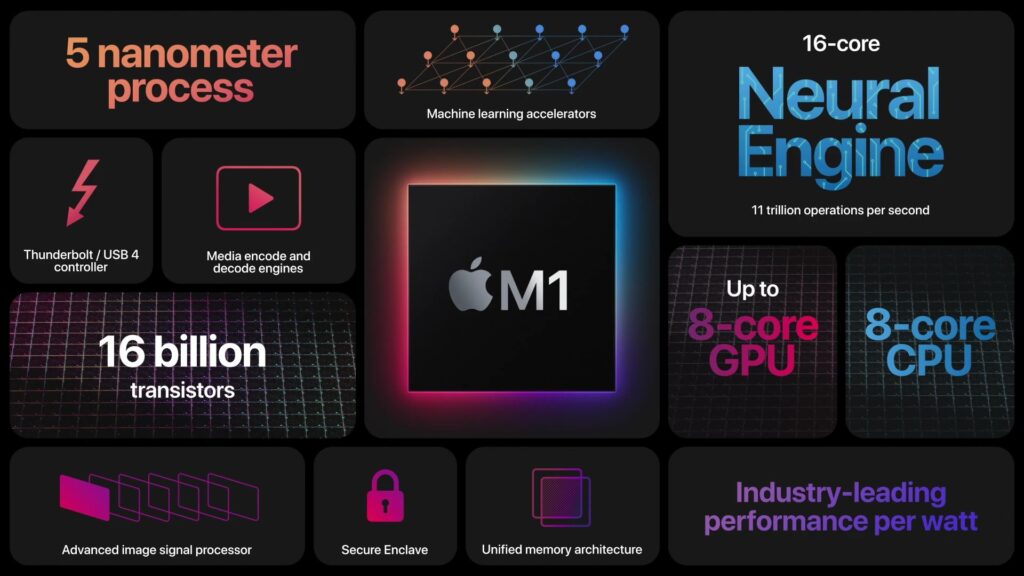
Apple Intelligence is Apple’s on-device + cloud-assisted AI feature set that’s only supported on Macs with Apple Silicon (M1 or later) and compatible macOS versions and settings. It’s not just “an app you turn on”; it’s tightly coupled to hardware, Secure Enclave-style capabilities, and OS-level entitlement checks.
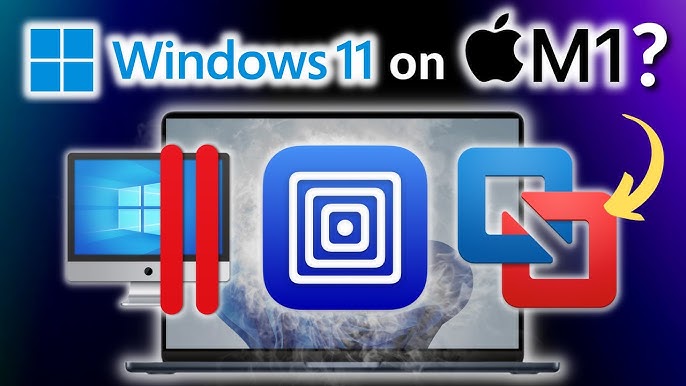
And here’s the kicker: a lot of virtualization setups can boot macOS, run apps, and feel “fine”… but still fail the specific requirements Apple Intelligence expects.
Why it breaks in VMs
Let’s be blunt. Most macOS VMs on a Windows host are already living in “unsupported territory.”
Typical failure points:
- Hardware requirement mismatch: Apple Intelligence support is limited to Apple Silicon Macs (M1 or later). If your “Mac” is actually an Intel-presenting VM, you’re dead in the water.
- Missing Apple frameworks/attestation bits: Even if the OS boots, the VM may not expose the right virtual hardware/security features Apple expects.
- Apple ID / iCloud weirdness inside VMs: Some VM environments have flaky Apple ID sign-in, App Store sign-in, or “waitlist forever” behavior. Apple Intelligence depends heavily on that ecosystem being happy.
- Language/region gating: Even on real Macs, people get bitten by mismatched Siri language/device language/region settings, and then assume the feature is “broken.”
Step-by-step: What to try (and what to stop wasting time on)
Step 1: Confirm the non-negotiables
Inside the macOS guest:
- Check whether the VM is presenting Apple Silicon (ARM) or Intel (x86).
- Confirm you’re on a macOS build that actually supports Apple Intelligence.
- Confirm you can sign in to Apple ID and that iCloud services are stable.
If your VM is Intel/x86-based (typical on Windows-hosted VMware macOS setups), Apple Intelligence is basically a no-go. That’s not you. That’s physics (and Apple’s rules).
Step 2: Fix the “it should show up” settings anyway
Even when the VM is capable, these settings commonly block the toggle:
- Set device language and Siri language to a supported language (often people use English (US) while testing).
- Ensure region settings aren’t conflicting with language.
- Reboot after changing these (yes, really).
This won’t magically bypass hardware gating, but it prevents you from chasing ghosts later.
Step 3: Don’t confuse “UTM” scenarios
UTM on Apple Silicon hardware (virtualizing macOS using Apple’s virtualization frameworks) is a different world than “macOS VM on Windows.” If you’re actually running UTM on a Mac with Apple Silicon, you have a fighting chance.
But on a Windows 11/10 host, “UTM” typically means you’re emulating/doing something indirect, and Apple Intelligence is far less likely to behave.
Step 4: Accept the reality: use a real Apple Silicon Mac for Apple Intelligence testing
If the goal is development, content creation, automation workflows, or validating Apple Intelligence behavior:
- Use a real Apple Silicon Mac (even a base model) for reliable results.
- Use the VM for everything else (build tools, Xcode project management, scripting, safe testing), but not for Apple Intelligence feature validation.
It’s annoying. Also true.
Real world test scenario (the one that saves hours)
Scenario: You’re on Windows 11, running a macOS VM in VMware, and Apple Intelligence doesn’t appear in Settings.
Do this quick triage:
- If the VM is Intel/x86 → stop troubleshooting Apple Intelligence. Switch plans (real Apple Silicon, or test on-device).
- If you can’t sign into Apple ID/App Store reliably → Apple Intelligence enablement is likely going to fail or hang.
- If you can sign in and you’re on Apple Silicon virtualization (rare on Windows hosts) → then language/region + reboot + waiting (some features take time to provision) is worth trying.
This “decision tree” is the difference between a 5-minute answer and a 5-hour rabbit hole.
Visual aid: VM reality checklist
| Check | What you want | What you probably have on Windows host |
|---|---|---|
| CPU architecture | Apple Silicon / ARM | Intel/x86 presented to guest |
| Apple Intelligence support | Available in Settings | Missing entirely or stuck |
| Apple ID + App Store | Fully working | Often flaky/blocked |
| Security/attestation | Passes system checks | Frequently fails silently |
Pros & cons of common approaches
Pros (VM route):
- Great for snapshots, safe testing, quick rollbacks.
- Useful for general macOS app testing (within reason).
- Convenient if you live on Windows 11/10.
Cons (Apple Intelligence specifically):
- Hardware-gated to Apple Silicon Macs.
- VM security model often doesn’t satisfy Apple’s checks.
- Apple ID / Store issues can block the whole feature stack.
- You can burn a weekend “tweaking” and still end up with nothing.
The verdict
If you need Apple Intelligence: don’t bet your workflow on a Windows-hosted macOS VM. Use a real Apple Silicon Mac (local or remote) for anything Apple Intelligence-related, and keep the VM for what it’s good at: isolated testing, tooling, and snapshots.
If you’re just curious and want to poke around, try the settings tweaks and sign-in stability steps. But if the VM is Intel/x86, call it early and move on. Future-you will thank you.
FAQ
Why doesn’t Apple Intelligence appear in my macOS VM settings?
Because Apple Intelligence is restricted to Apple Silicon Macs (M1 or later) and virtualization often doesn’t meet the hardware/security checks required.
Can VMware on Windows 11/10 run Apple Intelligence in a macOS VM?
In most practical cases, no — Windows-hosted macOS VMs generally present Intel/x86 and won’t qualify for Apple Intelligence.
If I fix Apple ID login in the VM, will Apple Intelligence work?
It might help in Apple-Silicon-native virtualization scenarios, but it usually won’t overcome the core hardware/attestation limits in Windows-hosted macOS VMs.
What’s the “future threat” here for VM users?
Apple is tightening hardware trust, on-device AI gating, and privacy/security enforcement. Expect more features to rely on those checks, meaning “it works in a VM” will become less reliable over time.
Want the guide tailored to your exact setup (VMware Workstation vs Player, macOS version, and whether you’re using an OpenCore-based image)?
