Close Menu
    What's Hot

    How to Fix and Prevent Prompt Injection in Custom AI Agents

    January 20, 2026

    Fix Apple Intelligence Not Working in a macOS VM (VMware/UTM) on Windows 11/10 Host

    January 6, 2026

    Top Hamachi Alternatives for Virtual LAN Gaming in 2026

    January 1, 2026
    Facebook X (Twitter) YouTube LinkedIn
    Facebook X (Twitter) YouTube LinkedIn
    SysprobsSysprobs
    • Tech Guides
      • Windows
        • Windows 11
        • Windows 10
        • Windows Servers
      • Virtualization
        • VirtualBox
        • VMware
        • Hyper-V
        • Server Virtualization
        • VirtualBox Images
      • PC
        • Linux
        • macOS
        • Hackintosh
        • MS Office
      • Pro IT Tips
        • Internet
        • MS Exchange
        • Fintech
    • Reviews
      • Gadgets
        • Android
        • iPhone
    • Security & Privacy
      • IT Security
    • Trading Gear
      • Laptops
    SysprobsSysprobs
    Home»Windows»Windows 7»Windows 7 Sidebar is Missing, How to Get it Back?

    Windows 7 Sidebar is Missing, How to Get it Back?

    DineshBy DineshUpdated:May 9, 2022
    Share
    Facebook Twitter LinkedIn Pinterest Email

    The sidebar feature was removed on Windows 7 OS by default. If you loved the cool and fancy sidebar on Windows Vista, you will notice that sidebar is missing in Windows 7.  Microsoft realized the sidebar problems with the previous OS and they changed it to Windows 7. The sidebar and its gadgets consume lots of resources on the computer and impact the performance negatively.

    Microsoft came up with a different feature called ‘Gadgets’ in Windows 7. It allows users to add and remove only important gadgets to their desktop to maintain the better performance and appearance of the desktop.

    Add Gadgets on Windows 7 Desktop (The Missing Sidebar)

    To add gadgets on the desktop, Right click on the desktop and select Gadgets.

    Gadgets in Windows 7

    Select the gadgets you want to add.

    These gadgets can be moved and placed anywhere on the desktop.
    Each gadget can have separate options.

    You can easily modify them to match the purpose and location of the gadget. To get the available options of a gadget, right-click on the gadget. You can customize the very gadgets differently.

    Windows 7 Sidebar Missing

    The Opacity of Windows 7 Gadgets

    The opacity of each gadget can be changed. This helps you to work on the desktop and other programs without any distractions from these gadgets. When you want to see the gadget in full mode, move the cursor on top of it to get 100% opacity. You can change the opacity from in the options.

    Opacity of Gadgets

    Change Size of Windows 7 Gadgets

    The size of the gadget (from small to larger) can be changed by a small arrow next to each gadget.

    Close sidebar in Windows

    Windows 7 sidebar and gadgets don’t consume computer resources like earlier Windows Vista. So it’s a huge improvement in Windows 7.

    Remove Windows 7 Sidebar and Gadgets

    It’s easy; close all gadgets from Windows 7 desktop. Once all gadgets are closed, it will terminate the sidebar process on the computer. That will help to free up some processor & RAM resources. When you start the computer next time, the closed gadgets will not show up again.

    Remove sidebar

    Permanently Remove Windows 7 Sidebar and Gadgets

    To permanently remove Windows 7 sidebar and its gadgets from your computer, follow the steps.

    1) Go to the control panel and open ‘Programs and Features’

    2) Select ‘Turn Windows features on or off’ on the left side as mentioned in the below picture.

    3) Look for ‘Windows Gadget Platform’ from the list and remove the checkbox.
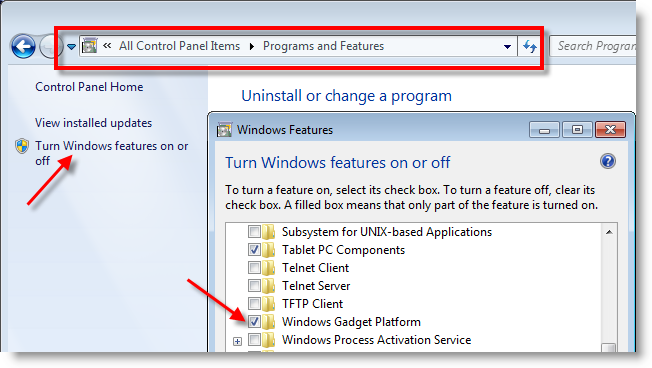
    Open control panel

    4) Once you click OK, it will remove the Windows 7 sidebar and gadgets from the computer permanently. You can reinstall the sidebar and gadgets by this same method by selecting the checkbox.

    5) Restart the computer after the installation or reinstallation.

    Once it was removed from the Programs and Features, you will not see the ‘Gadgets’ option when you right-click on the desktop.

    Uninstalled gadgets

    Are you still using Windows 7? You must look for the options to upgrade or migrate to the latest Windows Operating Systems such as Windows 10 or 11. It is not recommended to use an outdated OS at home or office.

    vista sidebar Windows 7
    Share. Facebook Twitter Pinterest LinkedIn Tumblr Email
    Dinesh
    • Website

    Dinesh is the founder of Sysprobs and written more than 400 articles. Enthusiast in Microsoft and cloud technologies with more than 15 years of IT experience.

    Related Posts

    How to Block Facebook on Computer- Windows 11/10 (Other Websites Also)

    January 9, 2023

    [Fixed] Language Bar Missing from Taskbar in Windows 10/11/8.1 or Win 7

    December 5, 2022

    How to Fix Temporary Profile in Windows 7/ 8.1/10

    August 15, 2022

    How To Make Windows 7 Faster? We have 28 Steps to Speed Up

    August 8, 2022

    How to Change Date Format in Windows 10/11 to dd-mm-yyyy

    July 21, 2022

    Fix – Admin Share (C$) Not Working in Windows 10/11/8.1/7

    July 17, 2022

    Comments are closed.

    Top Posts

    Windows 10 Network Slow? 11 Easy Ways to Make it Fast (Win 8.1/7 Too)

    May 17, 2019

    Network Stack BIOS – What is it, and Should I enable it?

    December 15, 2025

    250+ Funny Facebook Status/Quotes/Posts in 2026 – Free AI Creator

    December 29, 2025
    Don't Miss

    How to Fix and Prevent Prompt Injection in Custom AI Agents

    January 20, 2026

    Prompt injection doesn’t break AI systems the way a buffer overflow breaks code. It convinces…

    Fix Apple Intelligence Not Working in a macOS VM (VMware/UTM) on Windows 11/10 Host

    January 6, 2026

    Top Hamachi Alternatives for Virtual LAN Gaming in 2026

    January 1, 2026

    250+ Funny Facebook Status/Quotes/Posts in 2026 – Free AI Creator

    December 29, 2025
    Stay In Touch
    • Facebook
    • YouTube
    • Twitter
    • LinkedIn
    Latest Posts

    How to Fix and Prevent Prompt Injection in Custom AI Agents

    January 20, 2026

    Fix Apple Intelligence Not Working in a macOS VM (VMware/UTM) on Windows 11/10 Host

    January 6, 2026

    Top Hamachi Alternatives for Virtual LAN Gaming in 2026

    January 1, 2026
    INFORMATION
    • About
    • Contact Us
    • Privacy Policy
    ABOUT

    Established in 2007, Sysprobs is a trusted resource for IT professionals and System Administrators. We bridge the gap between enterprise infrastructure and the future of fintech security. From Windows virtualization to Blockchain node management, we provide technical guides for the modern digital economy.

    POPULAR SECTION

    WINDOWS 11
    WINDOWS 10
    VIRTUALIZATION
    IT SECURITY
    PRO IT TIPS


    Sysprobs
    Facebook X (Twitter) YouTube LinkedIn
    • Home
    • Windows
    • Cloud
    • Security & Privacy
    © 2026 SYSPROBS: System Security & Fintech Solutions. Protected by Cloudflare.

    Type above and press Enter to search. Press Esc to cancel.