


If a user says “the app cannot reach the server”, the first thing I run is test-netconnection. It pings the host, tests a TCP port and traces the route from one built-in PowerShell cmdlet, so there is nothing to install on Windows 10/11 or Windows Server.
In this guide, I’ll show the commands I use most, what the output means, and where the cmdlet falls short.
Quick answer: run
Test-NetConnection -ComputerName server01 -Port 443. IfTcpTestSucceededsays True, the port is open from your machine to that server. If it says False, something between you and the server (firewall, routing, or the service itself) is blocking it.
Ping a Host First
Run it with only a computer name or IP and it does an ICMP ping.
Test-NetConnection -ComputerName 192.168.1.10You get the remote address, the interface it used, the source address and PingSucceeded, with the round trip time. It is built in, so it works on a locked-down server where you cannot install anything.
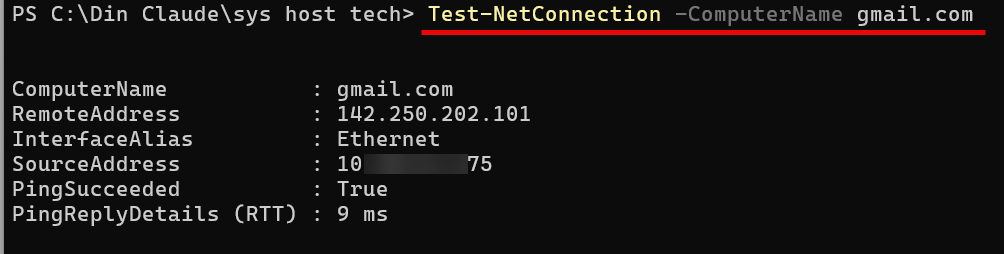
A failed ping does not always mean the host is down. Many Windows machines block ICMP by default. If you are testing a Windows PC, check this first: enable ping reply in Windows. Then test a real port instead of relying on ping alone.
Test a TCP Port from the Command Line
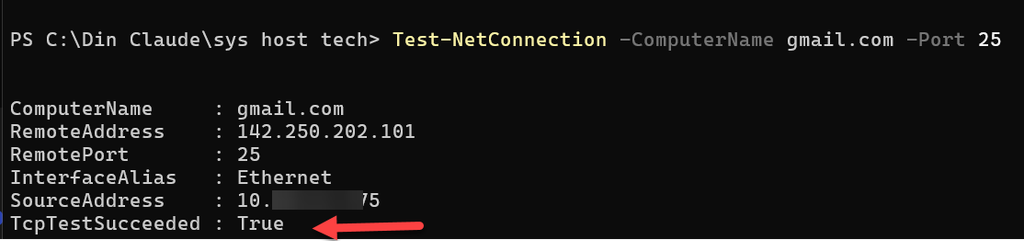
This is the reason most people search for the command. Add -Port:
Test-NetConnection -ComputerName mail.contoso.com -Port 25Look at TcpTestSucceeded. True means the TCP handshake completed. It does not prove the application behind the port is healthy, only that the connection opens.
For the common services you can skip the port number. -CommonTCPPort accepts SMB, HTTP, RDP and WINRM, as Microsoft documents:
Test-NetConnection -ComputerName fileserver01 -CommonTCPPort SMB
Test-NetConnection -ComputerName server01 -CommonTCPPort RDP
This replaces the old habit of using Telnet to check a port. If you still need it, here is how to enable Telnet, but I rarely bother now.
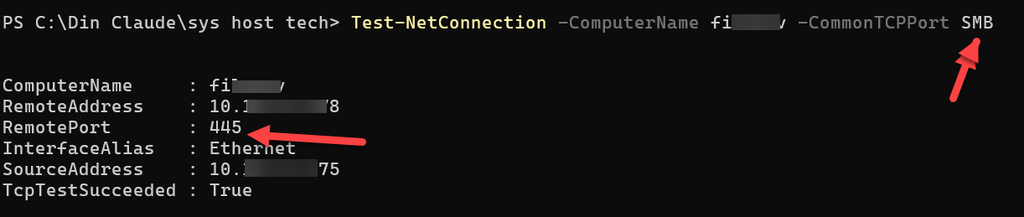
Obviously, if you have any firewall in between, these ports should be opened in your traffic flow.
When TcpTestSucceeded is False
Check these in order, because the cause is usually one of them:
1) The Windows Firewall on the server has no inbound rule for that port. 2) A network firewall or ACL between the two subnets drops it. 3) The service is stopped, or it listens on a different port. 4) You typed the wrong name or IP, so the name resolved to the wrong host.
The output also prints PingSucceeded for the same host. If ping works and the port fails, the path is fine and the problem is at the port. If both fail, think routing or a firewall that blocks everything.
Trace the Route and Diagnose Routing
Add -TraceRoute for a tracert style result, and -Hops to limit how far it goes:
Test-NetConnection -ComputerName 8.8.8.8 -TraceRoute -Hops 15The command output lists each hop in TraceRoute. A hop that times out in the middle is normal on many networks, since routers often do not answer. What matters is whether the trace reaches the last hop.
There is also -DiagnoseRouting, which shows how Windows picks the route and source address. You can limit it with -ConstrainSourceAddress or -ConstrainInterface. I would use it on a server with several NICs, where traffic leaves from the wrong interface.
Use Quiet Output in Scripts
By default you get an object with many properties. For scripts, -InformationLevel Quiet returns only True or False:
if (Test-NetConnection -ComputerName server01 -Port 443 -InformationLevel Quiet) {
    "Port 443 is open"
} else {
    "Port 443 is blocked"
}
To check many servers, loop over a list:
"server01","server02","server03" | ForEach-Object {
    [pscustomobject]@{
        Server = $_
        Port443 = Test-NetConnection $_ -Port 443 -InformationLevel Quiet
    }
}
Each failed test waits for the timeout, so a long list with dead hosts takes a while. For plain ping across many addresses, pinging multiple IP addresses is faster.
These types of scripts help a lot in a work environment when you manage multiple servers, for example, after a major firewall update with changes in the policies, or any system updates that closed certain SMB or RDP ports, etc
Test-Connection vs Test-NetConnection
The difference is simple: Test-Connection is the plain ping cmdlet. In PowerShell 7, Test-Connection also has a -TcpPort option, so it can test a port too. The older cmdlet is still the one to use on Windows PowerShell 5.1, where it is installed by default.
Not sure which version you run? See which PowerShell version you have.
Does PowerShell Test UDP Ports?
Not as far as Microsoft documents it for this cmdlet. The parameters only cover ICMP ping, TCP ports, route tracing and routing diagnostics. If you need to test UDP (DNS on 53 or NTP on 123 for example), you need another tool or a custom script, because a UDP “open” result is not reliable without a reply from the service.
Fix: Cmdlet Not Recognized
The cmdlet comes from the NetTCPIP module, which is part of Windows. If you get “not recognized”, you are most likely on a very old Windows version, or in a PowerShell session on Linux or macOS where that module does not exist. Open Windows PowerShell on a current Windows machine, or use Test-Connection with -TcpPort in PowerShell 7.
