


Anyone who has racked a handful of access points knows the awkward gap between plugging hardware in and reaching it. The device powers on, pulls an address from DHCP, and then sits there anonymously among thirty other leases. Network discovery utilities exist to close that gap, and most admins keep two or three of them around: a broad port scanner for the whole subnet, an ARP-table reader for quick MAC lookups, and something vendor-specific when the gear comes from a single manufacturer.
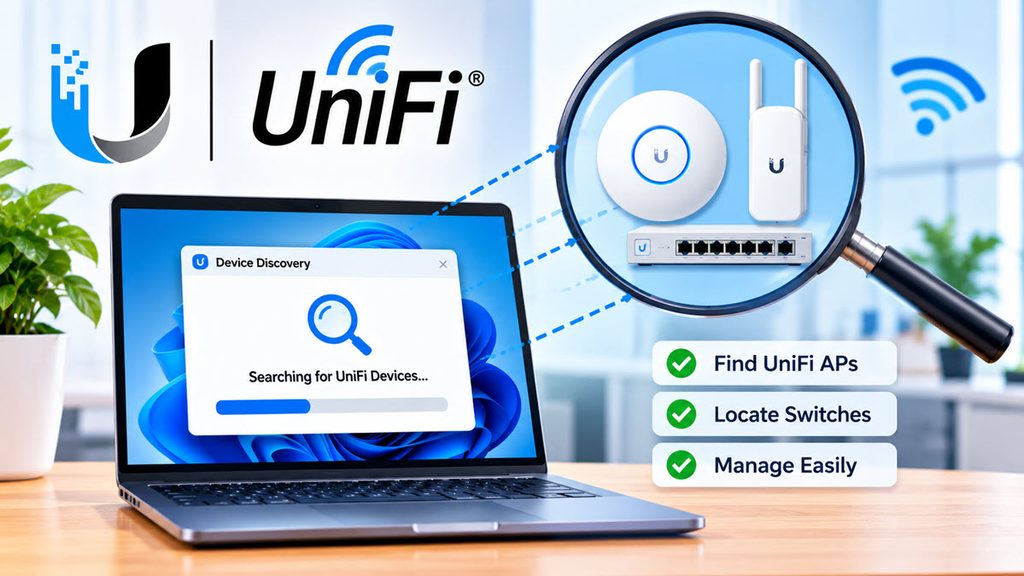
That last category is the interesting one. Generic scanners tell you an IP responds. They rarely tell you which firmware that responder is running, or whether it is an airMAX radio or an EdgeRouter.
Vendor-aware scanning
Vendor tools work differently because they speak the manufacturer’s own discovery protocol rather than guessing from open ports. Ubiquiti hardware broadcasts identifying information on the local segment, and a listener tuned to that broadcast gets structured answers back: model, address, firmware. No credentials, no SSH, no guessing at default hostnames.
The tradeoff is scope. A vendor tool finds that vendor’s equipment and nothing else, which is fine when you are commissioning a site built entirely on one ecosystem and useless when you are auditing a mixed closet.
Ubiquiti Device Discovery Tool in practice
The Ubiquiti Device Discovery Tool, published under the name Ubiquiti Networks, Inc., is the Android version of a utility most admins first met on the desktop. It scans the local network and lists every Ubiquiti device it can hear, with filtering by product family so you can narrow the view to UniFi, airMAX, or EdgeMAX rather than scrolling one long list.
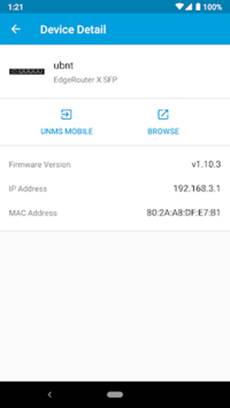
For each discovered device you get the basics that matter during setup and triage: IP address, MAC address, and firmware version. That combination answers the three questions that come up most often on site. Where is it, which physical unit is it, and is it running the build I expect.
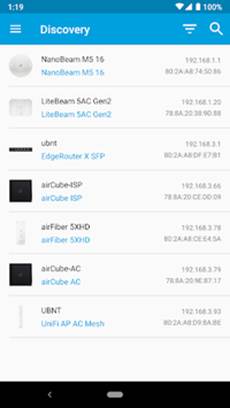
One limitation matters before you waste time chasing a phantom problem: devices already adopted and managed by a UniFi Controller will not appear in the discovery list. If a camera or AP you know is online refuses to show up, adoption is usually the explanation rather than a cabling fault.
Search works alongside the filters, which helps on larger deployments where a filtered list is still forty entries long. Type part of a MAC and the list collapses to the unit in your hand.
Why the desktop appeals
Phone-based discovery is excellent when you are standing on a ladder. It gets less pleasant once the job moves to a bench, because the follow-up work-opening a device’s web UI, pasting MAC addresses into documentation, cross-checking firmware against a release page- all happens on a keyboard. The practical fix is to download UBNT Discovery Tool for Windows 10 and run the same discovery list right next to the browser tabs doing that follow-up work.
Running the Android build on Windows means using an Android emulator, and the one configuration detail that matters here is networking. Discovery depends on broadcast traffic reaching the app, so the emulator has to sit on the same Layer 2 segment as the devices. A NAT’d virtual adapter will hide the broadcasts and you will see an empty list on a network full of hardware.
Commissioning jobs versus home-lab resets
This is a commissioning and triage tool, not a monitoring platform. It shines during the hour after installation, when nothing is adopted yet and you need to confirm that twelve access points came up with the firmware you flashed them with.
Home-lab users get similar value from a different angle, usually after a factory reset has quietly moved a device to a new address. Rather than scanning the whole /24 and parsing the results, you look at a list that only contains Ubiquiti gear.
And when one of those twelve APs does not appear, check the controller before you check the cable. Adopted devices stay invisible, exactly as the app’s own notes warn.
