


A dependable mobile workstation helps traveling software engineers stay productive without carrying an office in a backpack. The best setup covers four practical needs: comfortable input, dependable power, secure connectivity, and a plan for luggage between travel and check-in times.
Before each trip, test the full setup away from your normal desk. Work for an hour using only the equipment you plan to pack. This quick rehearsal exposes missing adapters, short charging cables, and remote access problems while you still have time to fix them.
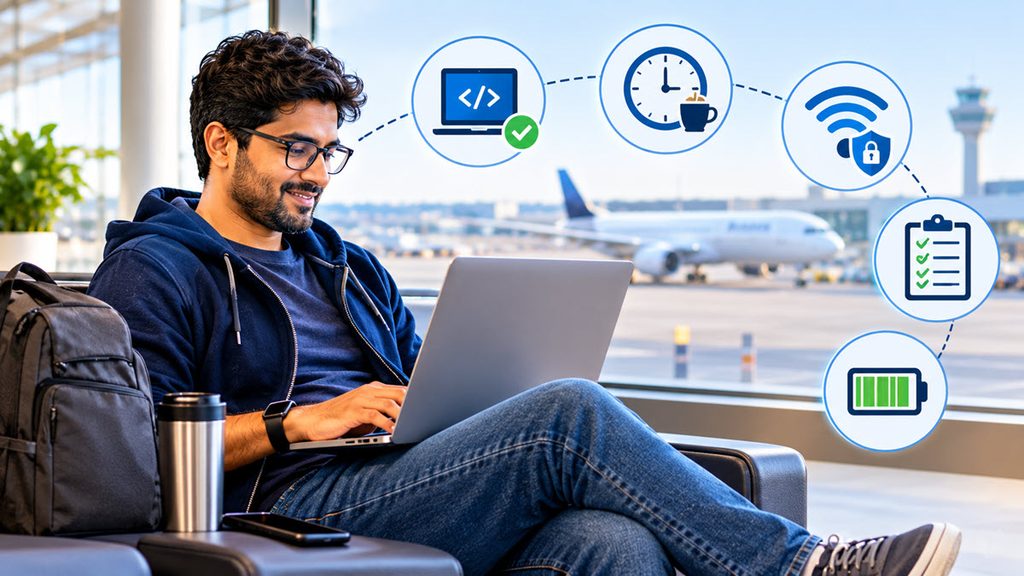
Streamline Your Mobile Peripheral Kit
Start with the devices that directly affect your ability to code. A compact keyboard, comfortable mouse, and noise-isolating headset usually earn their space. A folding laptop stand can also improve posture by raising the screen, though you may need an external keyboard to use it comfortably. This mobile workstation setup guide offers more ideas for arranging portable equipment.
Keep the power kit simple. A multiport USB-C charger can replace several separate adapters if it supplies enough wattage for your laptop. Check the power requirements printed on the original charger, then choose a replacement with an equal or higher output. Pack one long charging cable for awkward hotel outlets and one short cable for working at a cafe or airport table.
Put small accessories in a zippered organizer so they don’t disappear into different pockets. Useful items include:
- A USB-C hub with the ports your laptop lacks
- One video adapter compatible with common displays
- A small power bank approved for carry-on travel
- Spare earbuds for unexpected calls
- A flash drive used only for non-sensitive file transfers
The key is to avoid packing for every theoretical failure. Review what you used after each trip and remove anything that stayed untouched across several journeys. Broader travel technology tips can help you refine the kit for busy travel periods when outlets and quiet work areas may be harder to find.
Surviving the Gap Before Lodging Opens
An early arrival can leave you with three or four hours before check-in. Treat that time as a planned work block. Before you leave, identify two places with seating, restrooms, and dependable internet, then download maps and directions in case mobile service is weak.
Choose tasks that match the setting. Code review, documentation, and local testing are easier in a public space than a confidential meeting. Save sensitive discussions for a private room and use headphones during every call. A remote work travel guide can help you think through scheduling, connectivity, and workspace choices before leaving home.
Charge your laptop before landing and download the files you expect to need. That preparation lets you work even if the first location has no available outlet or its network requires a local phone number. Keep a mobile hotspot available as a backup, but confirm your plan’s roaming limits before relying on it.
Build some margin into the schedule. A delayed train or long immigration line can easily consume an hour. Avoid booking a high-stakes deployment immediately after arrival. If colleagues need to reach you, post a clear status message with your expected availability and time zone. A realistic calendar protects the team from waiting on an engineer whose travel schedule changed without warning.

Stashing Heavy Bags at Trusted Spots
Carrying a suitcase into a cafe makes it harder to find a seat, watch your equipment, and move around the city. Ask your lodging provider whether they can hold bags before check-in. If that option isn’t available, or the property is far from your planned workspace, consider a short-term storage service near a station or central work area.
For example, engineers arriving early for a conference can compare Toronto luggage storage locations on a map and book space through an online service. Pick a location based on your actual route, opening hours, and scheduled pickup time. A spot near the arrival terminal may seem convenient in the morning but create an unnecessary return trip before an evening check-in.
Prepare the bag before handing it over. Keep your passport, wallet, laptop, access tokens, and medication with you. Lock the main compartment, photograph the luggage and retain the booking confirmation. Remove loose straps that could snag during handling and place a contact label inside the case where it isn’t visible to passersby.
Check the latest pickup time carefully. If your train arrives at 8 a.m. and lodging opens at 3 p.m., schedule collection with enough room for transit delays. Engineers attending an afternoon client meeting should collect bags afterward, if storage hours allow. That keeps bulky luggage out of professional spaces and leaves both hands free for the smaller backpack containing your workstation.
Maintain Reliable Remote Access Tunnels
Test every remote access path before leaving. Confirm that your VPN client starts correctly, your credentials remain valid, and your multi-factor authentication method works outside your home network. If you depend on a phone for approval prompts, make sure it can receive them abroad or configure an approved offline method.
Avoid making public Wi-Fi your only route to production systems. Use your employer’s approved encrypted connection, and keep a personal hotspot ready if the local network blocks VPN traffic. The University of Maryland’s cybersecure vacation steps include practical guidance on device updates, account security, and using public networks.
Your access plan also needs redundancy. Save support contact details somewhere available without signing into the account that might be locked. If company policy permits, enroll a second authentication device or carry recovery codes in secure offline storage. Never keep those codes in the same unprotected bag as the laptop.
Run a realistic test several days before departure. Connect through a mobile hotspot, establish the approved tunnel, and verify access to source control, issue tracking, documentation, and required development hosts. Test DNS resolution as well as basic connectivity since an active tunnel can still fail to resolve internal services.
Plan for maintenance windows and time zone differences. Write down whom to contact if a certificate expires while your usual administrator is asleep. Avoid changing security settings during travel unless the support team directs you to do so. A rushed workaround can weaken account protection or create a configuration that fails again on the next network.
Once you reach your lodging, spend five minutes resetting the workstation for the next day. Charge every device, return adapters to their organizer, and confirm the next morning’s access window. That small routine prevents a missing cable or expired login from turning a normal work session into an urgent support request.
