Amazon’s Kindle Fire tablets are very popular due to their low price, amazing performance and most importantly Amazon Prime and Kindle eBooks support. These tablets have been the bestselling Amazon devices and they run Android, the most popular mobile operating system. Hence Kindle Fire tablets are popular among both kids and adults.

With Amazon Prime subscription, you can view all the movies and TV shows in Amazon Video, you can listen to all the music you want in Amazon Music and you can directly shop through the Amazon app. If you have an Amazon Kindle Fire HD device and it won’t turn on, here are six things you can do to solve the problem:
Method 1: Reset your Kindle Fire
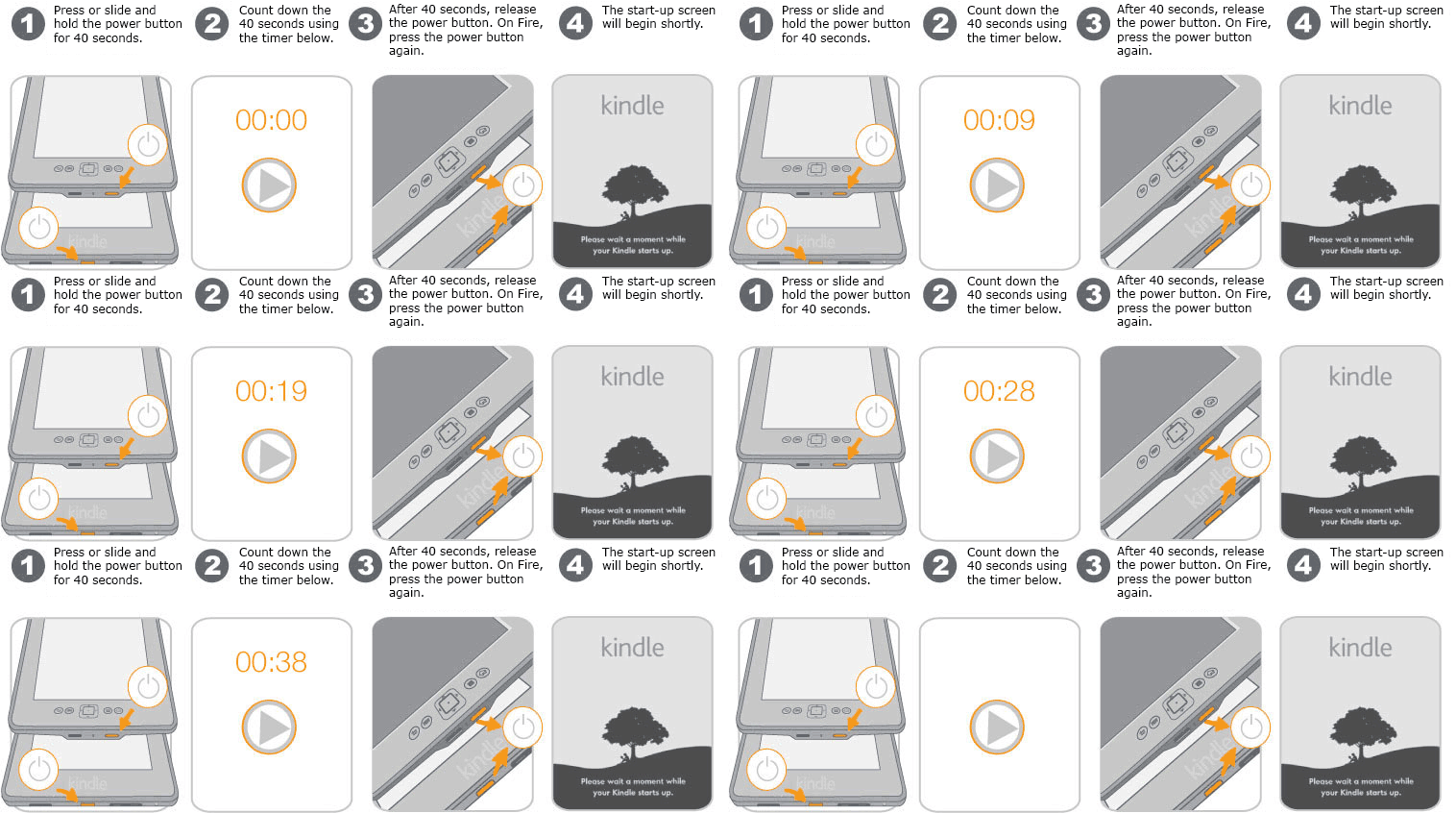
As the first step, try to reset it through the power button. Resetting the device will restart your unresponsive Kindle Fire HD. Follow these steps:
- Press and hold the power button of your Fire.
- Keep holding the power button for 40 seconds.
- After 40 seconds have passed, release the power button.
- Press the power button once more to turn on the Kindle Fire.
- If the device turns on, you will see the start-up screen.

You can also follow these steps.
Method 2: Charge the battery with AC Adapter
Your device is not turning on on probably because of a dead battery. Connect your Amazon Kindle to a charger and leave it for a few minutes. See if a charging animation shows up on the screen. If it does, the battery has been drained and let the Kindle Fire charge for hours and turn it on. If the animation does not show and the Kindle Fire won’t turn on, do this:
- Try connecting the charger to a different wall outlet.
- Try using a different charger.
- Try using a battery bank.
- Try charging with a laptop.
Even if a charging animation does not show up, try Method 1 once again after leaving the charger plugged into the device for a few minutes as mentioned before.
Method 3: Use “Volume Down” Button
For some Kindle Fire 5th generation this solution has worked. This may not work for you if you have the latest version such as 8th/9th Gen, but you should still try it.
- Press the “Power” button and “Volume down” button at the same time.
- Hold them for 5 seconds.
- It should turn on now.
Method 4: Reset Kindle Fire Through Recovery Menu
The recovery menu is meant to be used by advanced users but in this case, we can try to fix the issue. The recovery menu is used to reset or restore the Kindle Fire device if it is not working or turning on. Follow the steps to access the recovery menu on the device.
- When the Fire device is turned off, press and hold the “Power” and “Volume Up” buttons at the same time.
- Keep holding the buttons for 45 seconds.
- A menu will show up, with some options like “Wipe data” and “Factory Reset”.
- This is the recovery menu and touch selection won’t work here.
- Navigate the menu using the volume buttons.
- Changing the selection will highlight the menu option.
- Navigate to the “Wipe data/Factory Reset” option.
- Select this option by pressing the power button once.
- Note that selecting this option will wipe everything on your device and reset everything to defaults.
- Once the factory reset is done, restart the device.
- It should turn on now.
Method 5: Install Latest Software Through Recovery Menu
You can also restore and install the latest software through the recovery menu. This will factory resets your Kindle Fire and installs the latest software through the recovery menu. Follow these steps to do install the latest software:
- Follow steps 1 to 4 from Method 4 to get to the recovery menu.
- Once you get to the recovery menu navigate using the volume buttons.
- Keep holding the “Volume Up” button until you see “Installing the latest software”.
- The installation will take some time, wait till it completes.
- Make sure your Kindle Fire is charging so that it doesn’t run out of battery power while the latest software is installing.
- After the installation completes, your device will restart and you will be able to set it up.
Method 6: Contact Amazon Customer Support
If nothing works, the last resort is to contact Amazon customer support and hope that they may help you solve your problem.
If your Kindle Fire is under warranty, you may be able to get it repaired or replaced depending on what has actually happened to it.
Even if your Fire device is not under warranty, Amazon customer support may be able to help you in this matter. But the best solution, in this case, would be to buy a new Kindle Fire and sell your faulty to whoever buys it.
Smartphones and tablets are very useful devices current times and they are electronics and they can get faulty over time. Same is with the Amazon Kindle Fire tablets. We hope one of these solutions worked for you.