


Deploying an OS to one laptop is a quick task. But deploying OSs to two hundred laptops becomes a much bigger problem, especially when it involves multiple hardware vendors, adding them to a domain, migrating user data and adding several branch offices with limited WAN bandwidth.
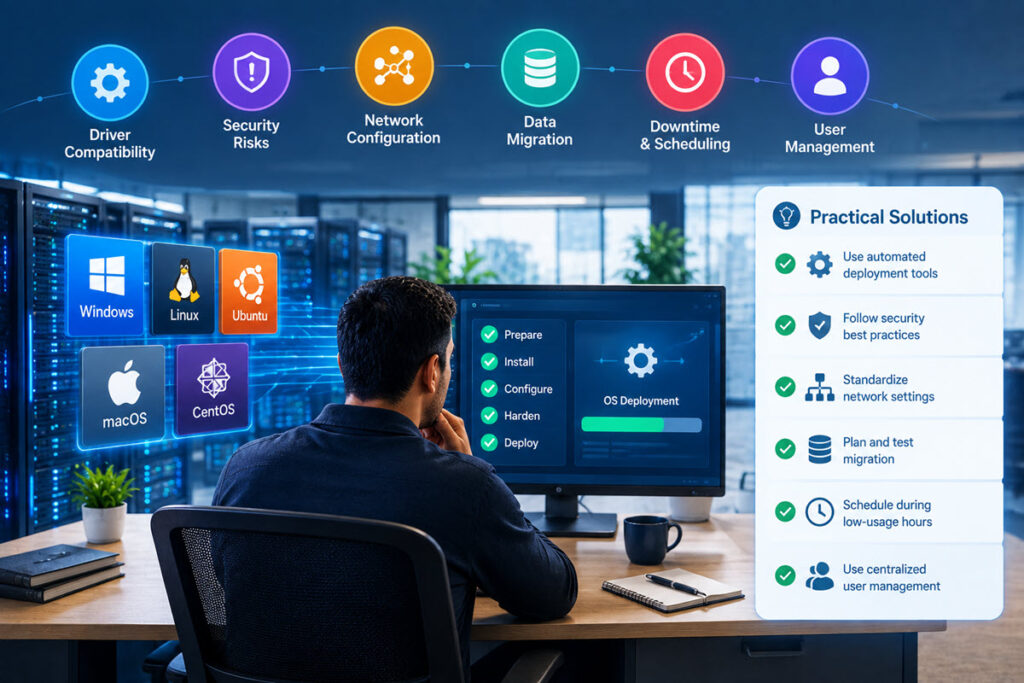
Although deployment tools have evolved, the challenges remain the same: Diverse hardware, bandwidth constraints, user migration, inconsistent configurations and pressure to deploy devices quickly. This article explores six common OS deployment challenges and discusses practical ways to address them with the capabilities available in ManageEngine OS Deployer.
1. Maintaining separate images for different hardware models
Most IT teams don’t buy computers from a single vendor. A network usually has a mix of Dell, HP, and Lenovo machines, sometimes from different purchase cycles. Each computer type comes with its own chipset, network adapter, and storage controller. Building and maintaining a separate OS image for every hardware combination gets unmanageable fast, and a driver mismatch is one of the most common reasons a freshly imaged machine fails to boot or loses network connectivity.
Hardware independent deployment capabilities in ManageEngine OS Deployer allows administrators to maintain a single reference image while injecting required boot-critical drivers during deployment. The driver management module complements this with a centralized driver repository where NIC, storage controller, chipset, display, and peripheral drivers are organized for easy management. It also supports importing OEM driver packs from Dell, HP, and Lenovo, helping administrators maintain a single, up-to-date driver library across diverse hardware.
2. Manual deployments don’t scale
Walking up to each machine, booting it, selecting settings, and starting deployment one at a time is fine for a handful of PCs. It stops being manageable the moment you’re deploying OS to bare metals for a new branch office or refreshing a department’s hardware for the new academic year or for your office.
OS Deployer supports multiple deployment methods depending on the scenario. Administrators can perform manual deployments, schedule deployments for known machines, or automate large rollouts using PXE boot, USB media, or ISO boot media. For multiple systems on the same network, multicast deployment distributes a single image stream to many devices simultaneously, reducing deployment time and unnecessary network traffic compared to separate unicast transfers.
3. Bandwidth bottlenecks at branch offices
Deploying large operating system images from headquarters to every remote office can saturate WAN links and significantly slow down deployments. OS Deployer supports Distribution Servers for remote offices.
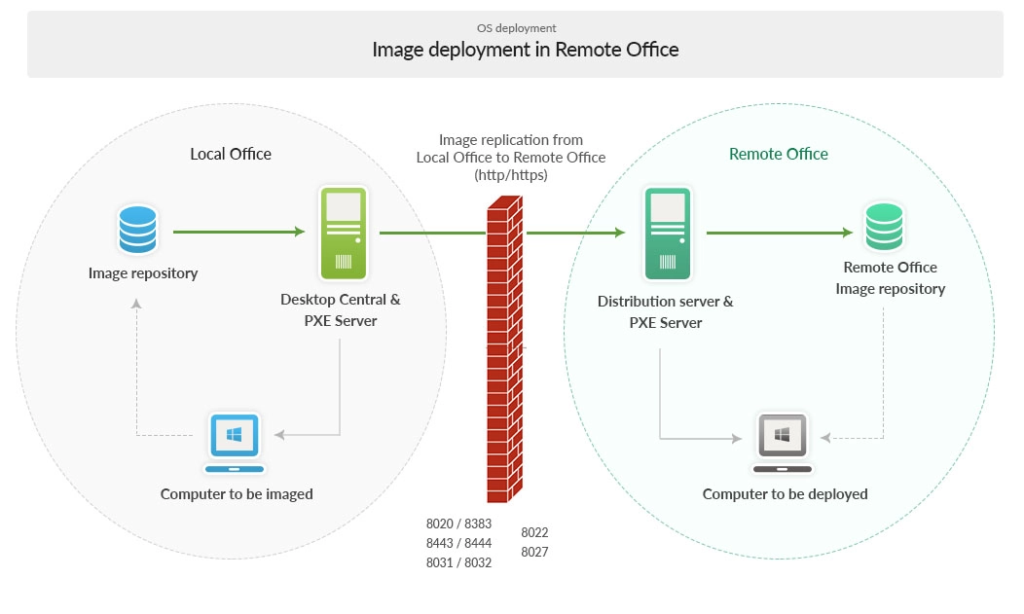
The local office holds the primary image repository, and each remote office replicates a copy to its own local store, so machines at that site can deploy from local storage instead of pulling data across the WAN every time. Admins can schedule this replication during off-peak hours and pair it with the multicast method locally to keep bandwidth usage under control even during large roll-outs.
4. Rebuilding systems without losing user data
Reimaging a machine wipes the existing operating system, which is often necessary during a refresh or hardware replacement. Without a migration strategy, users can lose important documents, desktop files, browser and application settings, resulting in additional post-deployment support and manual recovery.
ManageEngine OS Deployer simplifies this process by integrating with Microsoft’s User State Migration Tool (USMT). Before deployment, administrators can capture supported user profiles, files, operating system settings, and application settings. Once the new Windows image is deployed, the captured user state can be restored automatically, helping users return to a familiar working environment without manually recreating their profiles. User Profile Migration requires the Windows ADK with USMT installed and is available for on-premises deployments. USMT supports capturing user state from Windows 7, 8, 10, and 11, with restoration supported on Windows 10 and Windows 11.
5. Recovering from malware or corrupted systems
Sometimes a rebuild isn’t just about upgrading hardware, it could also be damage control. A virus infection or a corrupted OS install can spread across a network, and antivirus tools cannot always undo the damage that is already done.
OS Deployer supports wiping an infected OS and redeploying a clean image, with different recovery paths depending on how widespread the infection is. For a handful of affected machines, admins can deploy a clean OS image to the infected ones. If the OS Deployer server itself is compromised, a fresh server install with a new clean image gets the recovery process going again. In the worst case, where no isolated, virus-free network segment is available, standalone deployment allows operating system deployment, providing an alternative deployment method without relying on the network.
6. Keeping deployments consistent
Different departments require different applications, naming conventions, domain placement, and deployment settings. Performing these steps manually increases the risk of configuration drift.
Deployment templates solve this by letting admins define a standard OS image along with computer naming, domain and OU placement, security identifier handling, and post-deployment applications or scripts, then reuse that template across every machine that needs it. Drivers can be assigned to specific templates too, so a marketing template and an engineering template can share the base image while still getting the right drivers and applications for their respective hardware and workflows.
Conclusion
Most OS deployment problems trace back to the same root causes: Too much manual work, too many hardware variants, and not enough standardization. Every IT team dealing with a mixed hardware fleet, a multi-site network, or frequent onboarding runs into some version of the six issues mentioned above sooner or later.
What changes the outcome is whether the process is still built around manual, one-machine-at-a-time habits or around a system designed to handle the variability for you. ManageEngine OS Deployer takes the second approach. It centralizes image management, automates driver management, migrates user data without losing it, and gives admins template-driven, deployment option that scale from a handful of machines to a full enterprise rollout. The result is a deployment process that stays predictable even as the fleet gets bigger and messier, without turning every rebuild into a multi-hour project.
To learn more about ManageEngine OS Deployer and explore its deployment capabilities, visit this page.
Contributed by: Siyuly Kingsly
Siyuly Kingsly is a Product Marketer at ManageEngine, specializing in OS deployment and endpoint management within the Unified Endpoint Management and Security (UEMS) suite. She creates technical and educational content that helps IT teams simplify OS deployment challenges and manage endpoints more effectively at scale.
