


Here is a complete and working step by step guide to install Mac OS X 10.7 Lion on VMware with your Windows computer. After several days of research, attempts, and collecting information from different places, I managed to install the Lion OS 10.7 on my Intel computer by using the vanilla kernel.
This method should work on VMware Player also, but I prefer workstation because of the snapshot feature. I don’t think you would face any issues on other types of Intel processors, but make sure that Hardware Virtualization Technology (VT) is enabled. I’m not sure about AMD processors.

This method is completely for testing and learning purpose only.
Requirments
- Latest VMware workstation
- Lion OS X bootable VMDK file created from original installation medium (DVD or ISO file) – Check this guide and make this bootable image as described.
- Additional Files – It is a zipped file with two sets of required files.
One file to patch the VMware software to support Mac OS X guest virtual machines ( Original Source), and the second one with pre-configured Virtual machine files (Original source) and darwin.iso file to install VMware Tools on the guest VM to get more screen resolutions, improved performance and shared folders feature. - Check the hardware VT of your computer BIOS as shown here.
- Just little bit time to read the complete guide 🙂
Steps to Install Mac 10.7 Lion on VMware–Windows 7 Intel PC
1) Download the bootable files.
Download the required files to unlock the VMware workstation.
Before running the patch, I highly recommend taking a full backup of VMware Workstation/VMplayer programs files (Normally located under C:\Program Files\VMware).
When we execute this, it will modify some VMware binary files and unlock VMware application to support macOS guest versions on Windows host.
Close the VMware program completely, then open the command prompt as administrator and execute the windows.bat file (or, even you can right-click on the windows.bat file and run as administrator)
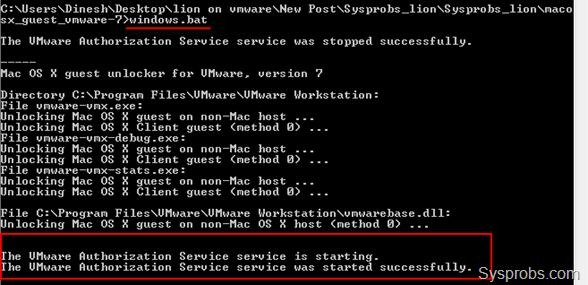
2) Extract the Lion_107.zip file which you download in additional files set. Make sure that the extracted file location is having enough of disk space to grow.
Open Mac OS X Server 10.6 64-bit.vmx file in VMware workstation or VMPlayer.
Go to the settings of the virtual machine and add a hard disk, select the existing option and browse the Lion OS installer image VMDK file we created in the previous guide.

You can modify the memory size and number of processors based on physical computer hardware resources.
Remove the CD/DVD drive file attached with this pre-configured file.
3) That’s it. Start the virtual machine now. It should boot now. It will boot from 5GB vmdk file we created as bootable installer image.
Select the Language on the first screen and start the installation.
4) Select ‘Macintosh’ disk in the next screen. If you can’t see the disk, then go to ‘Utilities’ and click on ‘Disk Utility’. Create a partition as shown below.

5) I’m sure the installation will end smoothly. Complete the initial configurations and setup at the next boot. You can remove the 5GB installer VMDK file from the virtual machine to avoid any overwriting on this virtual hard disk.
6) Here is the working Mac OS X 10.7 Lion on VMware workstation as a virtual machine on Windows OS Intel-based computer. It’s really nice to use and play around with Apple OS on a normal PC.

Take a Snapshot before doing anything now!
Some Post Installation Checkups and Configurations
1) Network
Network inside Lion OS X virtual machine worked out of the box. I tested the NAT and Bridged network types both worked nicely with my physical internet connection.
2) USB storage Access
USB storage access including Flash disk and external hard disk worked fine in VM.
3) Increase Screen Resolution
You will get only one screen resolution size inside Lion OS virtual machine. Install VMware tools to increase the screen size and get more resolution options. VMware shared folders feature will work after the VMware tools installation.
To Install VMware tools, mount the darwin.iso to DVD/CD drive and run the installation then restart the VM.

Here are the available screen resolutions after VMware tools installation.

4) VMware Shared Folders in Lion OS X guest and Windows 10/7 Host
Go to Settings of the virtual machine and select ‘Shared Folders’ under ‘Options’.
Select ‘Always Enabled’ and add the Folder or Partition from Windows host Operating System. That’s it, now try to open the ‘VMware Shared Folders’ shortcut from the desktop of the guest machine.
You should be able to access the host’s shared folder or partition from Lion OS X virtual machine now.

5) Sound
The sound did not work as expected. I hope it will not create any issues in this test environment, who is going to watch move from the VM? It would work properly if you virtualize the macOS on Apple hardware with VMware Fusion or VirtualBox.
6) Update to latest versions
Since we have used the vanilla kernel without customizing any Mac binaries, this version can be upgraded to the latest versions from the Apple app store. If your physical hardware can handle it, you upgrade to the latest version by following the correct upgrade path.
This demonstration was done in the year 2011 on my Intel Core2duo computer. I do not find any valid reasons why you should try this pretty old macOS on the latest hardware when the Big Sur (macOS 11.0) available on the market.

464 Comments
My machine is working ok then I tried to update using Software Update. It installed Lion 10.7.4 and iTunes.
Everything seemed to work the installations was ok but the machine does not start after that.
Have you tried to update. What could be the problem ????
Thanks
Unfortunately, I’ve heard of some having difficulty with updates. I personally haven’t had any problem but even so, before an update, I make a complete backup to another drive of everything in the vm folder. Some make a clone or a snapshot. I guess I would recheck settings in Workstation or whatever you use and run the unlocker again.
i’ve tried to unlock again a VM 8.0.3 and Lion 10.7.4 but does’nt work !
Check on http://www.windows7hacker.com/index.php/2011/09/how-to-install-fully-functional-mac-os-x-lion-virtual-machine-inside-windows-7/ the post by Osuron07. I follow the instructions and everything works now.
1. Download the 10.7.4 combo update from Apple’s website, don’t try to update it from Software Update.
2. Don’t apply the update yet, make sure you have taken the snapshot of your current system OR if you are running
VMware Player like me, make a copy of your whole “Virtual Devices” folder(mine was by default in “My Documents”) first.
3. Open Terminal inside Lion
4. run the following command, including the dot at the end.
cp -r /System/Library/Extensions/AppleLSIFusionMPT.kext .
cp -r /System/Library/Extensions/AppleSMC.kext .
5. Now apply the update, but don’t reboot after it’s finished.
6. now go back to terminal and at the same directory location run the following command
7. sudo rm -rf /System/Library/Extensions/AppleLSIFusionMPT.kext
sudo rm -rf /System/Library/Extensions/AppleSMC.kext
8. sudo cp -r AppleLSIFusionMPT.kext /System/Library/Extensions
sudo cp -r AppleSMC.kext /System/Library/Extensions
9. Reboot
Were you able to resolve the sound issue? I am still soundless on 10.7.3
Have you tried EnsoniqAudioPCI? That worked for me. Search for that sound driver and install it, if not. Make sure the sound card is installed and connected on your vm. Also, look through “Older Comments” – link is at end of current posts.
When will we be able to A) Use DUAL SCREENS on the VMware for Apple and B) increase the MEMORY on the VMWARE? Why are we being hindered with Apple virtualization? I can run any OS on my vmware or VB and get maximum performance and multi-screens, but not with Apple virtualization. Ridiculous!
Sin pongo este sistema operativo en mi i5. funcionaria el final cut pro 10 ??
Creo que no porque la sistema no usa la carta video fisica, solo video virtual lo qual es muy limitado. El aplicacion Aperture ni siquiera empezar porque necesita QE/CI. Entonces el edicion de video is muy dificil y probablemente, imposible.
Tal vez, si instale Final Cut en un Hackintosh, podria funcionar.
Me entiendes? (Mi espanol no es muy bueno)
thanks was a great help … mac acquistare jajajaj
I managed to get this working on an HP Pavilion DV7t Quad Edition laptop configured with:
– i7-2630qm (2GHz, + turbo) (using the integrated Intel 3k GPU)
– 16GB DDR3 1333MHz RAM
– I haven’t yet tried with my ATI 6770m GPU yet, as I have switchable GPUs.
– Using an HP 2711x external monitor via HDMI
– Installed successfully on my USB 3.0 external HDD
So got this running without a problem. Just wondering if anyone has gotten the dual monitor working? When I try it says it’s not supported.